Some people calls same item with different name. For example in most of the countries ‘TV channel changer’ calls ‘Remote control’ but in ‘New England’ it calls a ‘Clicker’. As per business scenario it is one of the most important thing to build healthy relationship between customer and company. NetSuite setup a relationship between item number and customer’s item number as per below mentioned ways.
Steps for ‘Customer Part Number’:
- ‘Supply Chain Management’ SuiteApp installation.
- Setup & Enabling feature.
- Add ‘Customer Part Number’ in ‘Item’ record.
- Use ‘Customer Part Number’ in ‘Transactions’.
- ‘Supply Chain Management’ SuiteApp installation:
- Navigation: Customizations > SuiteBundler > Search & Install Bundles.
- Search with bundle id: 47193.
- Appear ‘Supply Chain Management’ bundle then install it.
- Setup & Enabling feature:
- Go to Transactions > Management > Supply Chain Management.
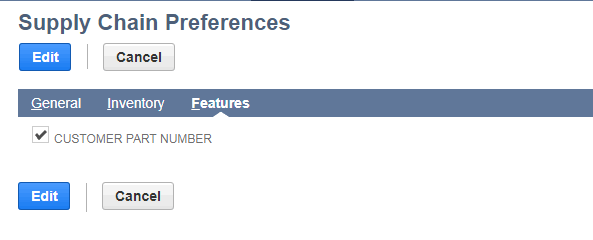
- Click on ‘Preferences’ link then display ‘Supply Chain Preferences’ page.
- Select ‘features’ tab and click on ‘Customer Part Number’ checkbox.
3. Add ‘Customer Part Number’ in ‘Item’ record:
- Open item record and click on ‘Customer Part Number’ subtab.
- In the ‘Customer Part Number’ field type customer calls name.
- In the ‘Customer’ field select customer to associated this name.

- Use ‘Customer Part Number’ in ‘Transactions’:
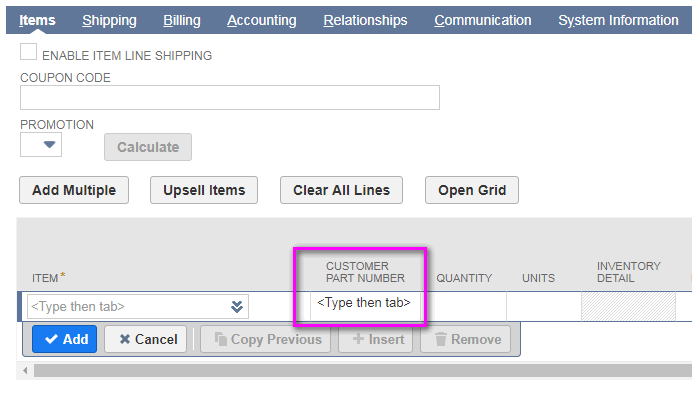
When open sales transactions in line level ‘Item’ record appear ‘Customer Part Number’ field. Search with customer calls name ‘Item’ name is sourced automatically.
Note: ‘Customer Part Name’ is displayed based on ‘Customer’
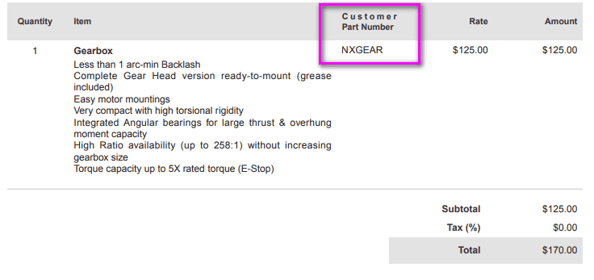
Customer part number appear in ‘Printing Transactions’:
When click on ‘Print’ option in ‘Sales Transaction’ records.
This process eliminates the need to perform a manual conversion of Customer’s item number to item number prior to entering the order thus reducing man hours expended in a non-value-added activity.