Perform the following steps to reflect a price of an Item decreasing on a Sales Order that has been Billed and an Invoice that has been paid:
- Edit the Sales Order and change
- Change the price on the amount column
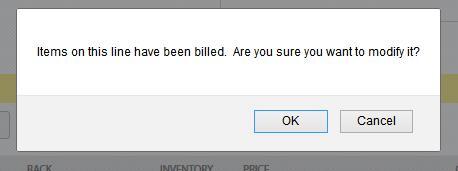
- Click ‘Ok’ on the pop-up displayed as “Items on this line have been billed. Are you sure you want to modify?”
- ‘Save’ the Sales Order
- ‘Edit’ the related ‘Invoice’
- Change the price in the ‘Amount’ column
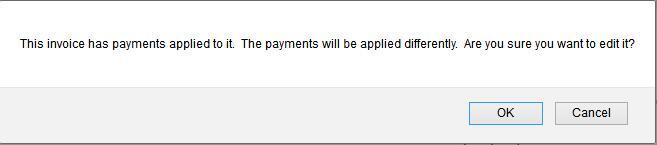
- Click ‘OK’ on the pop-up displayed as “This invoice has payments applied to it. The payments will be applied differently. Are you sure you want to edit it?”
- ‘Save’ the Invoice
The payment amount applied to the Invoice will decrease to the new total of the Invoice and the remaining payment amount will remain as a credit on the Customer’s account. This amount can then be refunded or applied to the next Invoice.