Last reviewed: 10 October 2026. Product details reflect this review date. Availability and behavior can vary by account, role and release.
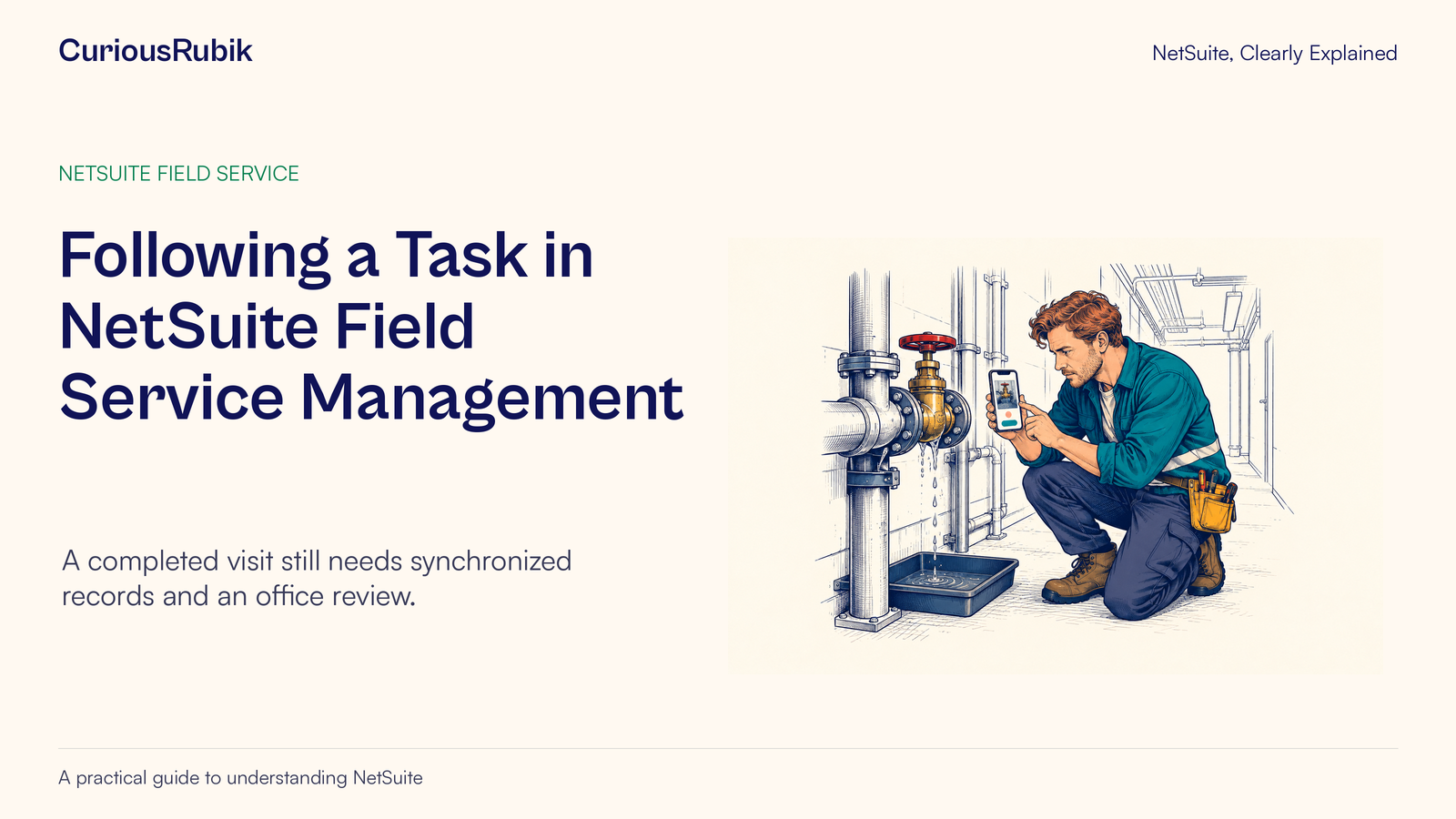
Editorial ink illustration: A field worker records information on a phone beside a valve.
A technician can finish a repair before the office has the evidence it needs to close the job or prepare a bill. The missing step may be a note, a part quantity, a required review, or an update still waiting on an offline device.
NetSuite Field Service Management, or FSM, connects service work across dispatchers, technicians, and office teams. A service task is a useful place to follow that connection. It identifies work to perform, carries the assignment, and provides a reference for the technician's evidence and the office's next decision.
This lesson follows one fictional valve replacement. It explains the handoffs without assuming that every FSM deployment has the same fields or statuses. FSM requires its own setup and access. FSM Mobile is distinct from the general NetSuite mobile app and warehouse mobile processes.
Start with the customer, asset, and service need
Before assigning work, identify the customer and the equipment or asset that needs attention. A site can contain several similar assets, so “repair the leaking unit” may be insufficient context for a technician or reviewer.
The task should point to the intended service need and carry the information your process requires. That may include the relevant history, location, reported symptom, and scope of work. Use the configured records and authorized information rather than relying on a separate conversation that the office cannot trace later.
Clarify the outcome before dispatch. Is the visit intended to diagnose the issue, complete a repair, or inspect work already done? Those purposes have different completion evidence. A diagnosis can be successfully completed while the underlying repair still needs a follow-up task.
Customer assets, cases, and tasks provide related context in FSM. Keep their roles distinct: the asset identifies what is being serviced, the case describes the service issue where used, and the task organizes the particular work.
Assignment establishes responsibility
The FSM Schedule Board helps dispatchers view and arrange time-based work and resources. Assigning a task connects the work with a technician and a planned time. It does not establish that the technician has arrived or completed the repair.
Before the visit, confirm that the intended technician can see the task and the required information. A dispatcher seeing an assignment on the board is not enough evidence that the technician's access and device are ready.
Discuss the information needed for the particular job type. FSM Mobile is configurable: administrators can vary tabs, fields, and required information by customer or job. A training example should therefore identify what is required in the deployed process rather than promising a universal screen layout.
The task identifier is the common reference through the handoff. Use it when clarifying the assignment, reporting a mobile issue, and reviewing the completed work. This helps distinguish a delayed update on one task from a change made to another.
Capture what happened while the work is fresh
Technicians use FSM Mobile to view assigned work and record progress. Supported task information can include status, notes, parts, time, and expenses. The deployed configuration determines the details the technician must complete.
Good evidence explains the work, rather than merely restating a status. “Replaced the inlet valve and checked for leakage under the agreed test” tells the reviewer more than “done.” The note should remain factual and within the technician's actual observations.
Parts and time need similar precision. Record the actual item and quantity used, together with the relevant time entry under the organization's rules. A planned part is not proof that it was installed, and a scheduled appointment length is not proof of time worked.
If the process requires additional evidence such as a photograph or signature, confirm that it was captured in the required place. Do not assume every FSM task requires the same evidence or that a signature automatically approves every resulting charge.
Follow a fictional valve replacement
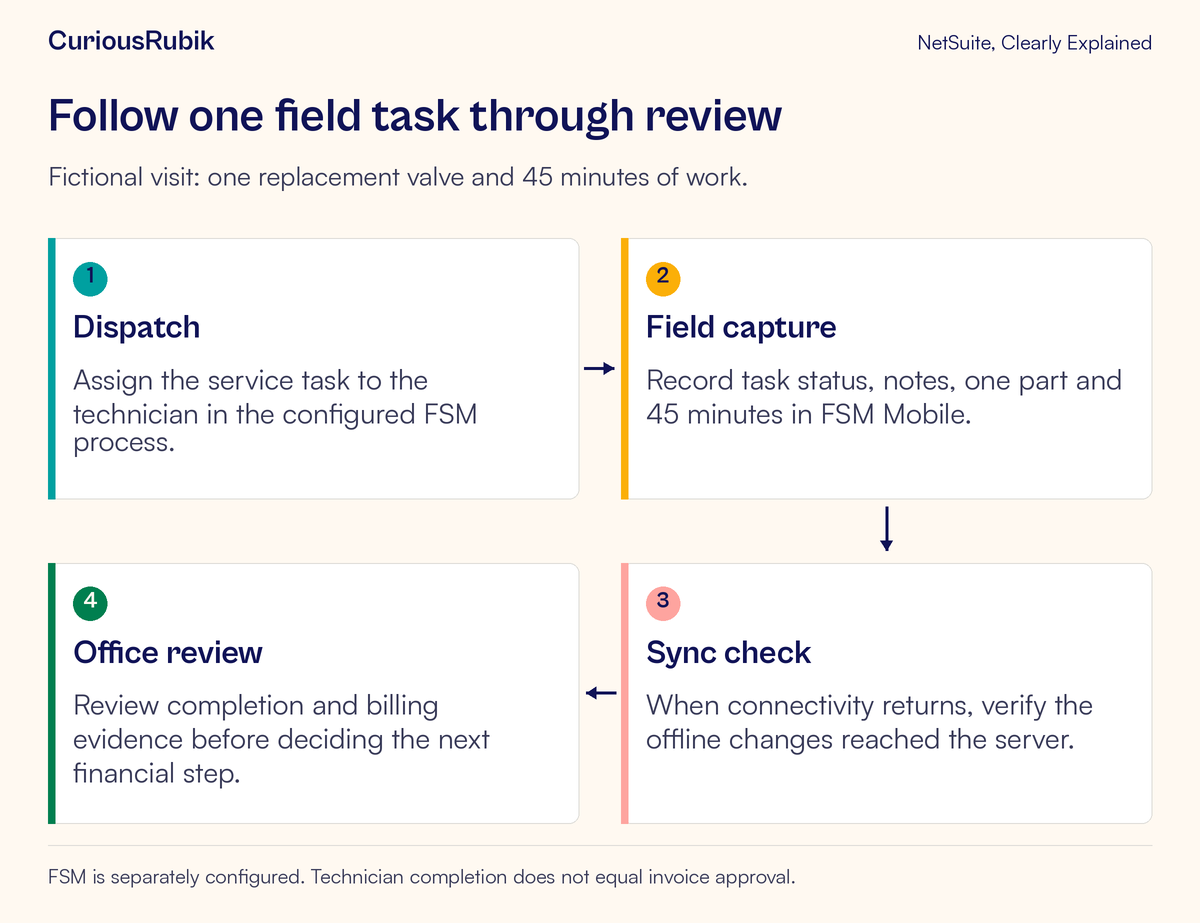
Suppose a fictional service company, Clearbrook Maintenance, assigns task TEST-SVC-62 to technician Rowan. The task concerns a valve on a customer's identified piece of equipment. The agreed visit is a repair, with a required check of the result before departure.
The dispatcher verifies the assignment and Rowan's access before the visit. Rowan reviews the permitted task information and asset history while connectivity is available. This preparation matters because some mobile functions need a connection.
At the site, Rowan replaces one valve and records 45 minutes of work. The task note describes what was replaced and the observed result of the agreed check. The example does not establish that 45 minutes is the correct duration for this kind of repair; it is simply the fictional time recorded for this visit.
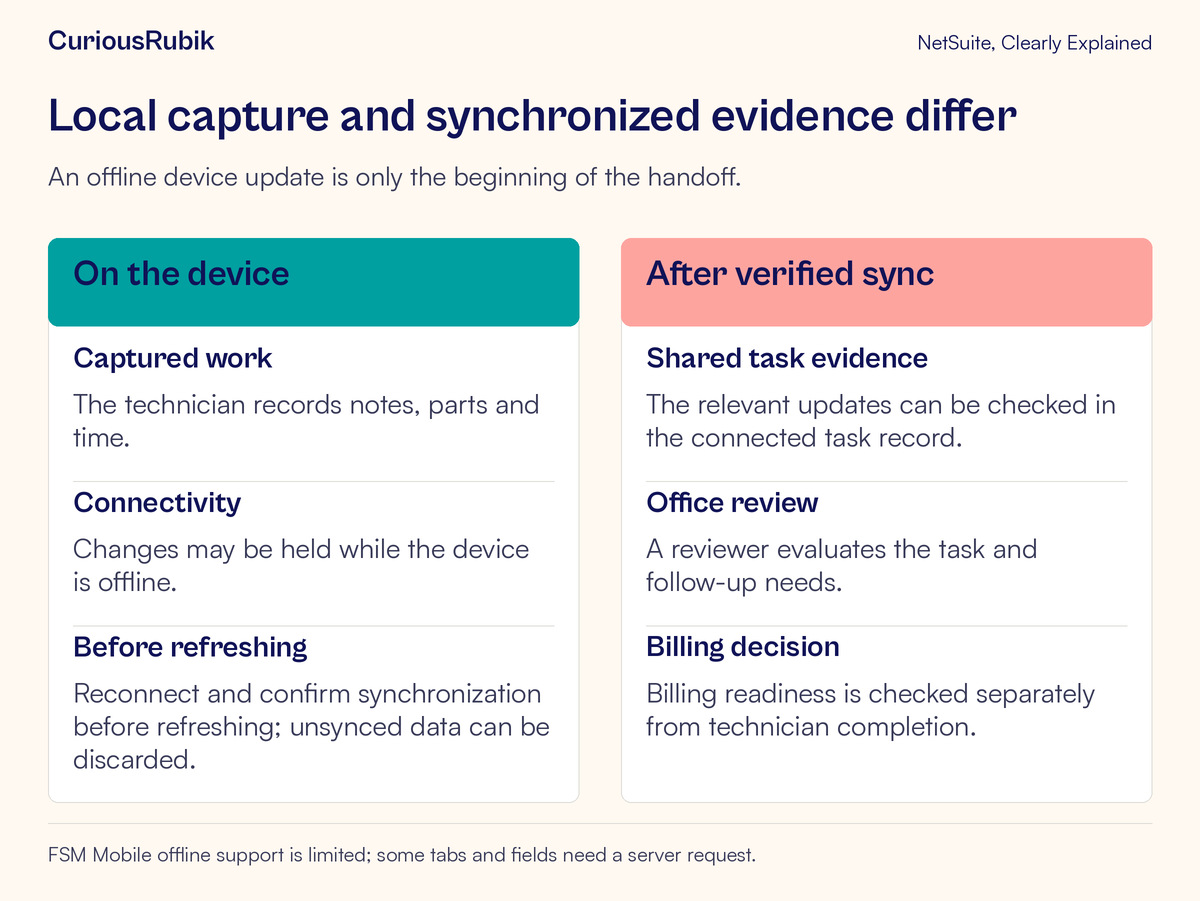
During the visit, the device loses connectivity. Rowan continues with the supported offline functions and records the completion information locally. At that moment, the device may show the update while the office still sees older information.
The dispatcher should not interpret the older office view as proof that Rowan did no work. Equally, Rowan's local completion display does not establish that the shared NetSuite task contains the finished evidence. The team needs to verify synchronization.
When connectivity returns, Rowan allows the offline changes to synchronize. The office then checks the intended task for the updated status, the one-valve part entry, the 45-minute time entry, and the completion note. Any required additional evidence is checked under the deployed process.
Only then does the office review what comes next. The service lead may need to arrange follow-up work. Finance may need to decide whether the part and time are covered, chargeable, or subject to another approved treatment. The technician's recorded work is evidence for that review, not the decision itself.
Protect offline work before refreshing
FSM Mobile supports some offline work, but not every function is available without a connection. Remote tabs and fields that send requests to NetSuite need connectivity. Plan the visit around the functions the technician actually needs.
The critical recovery rule is to reconnect and allow outstanding changes to synchronize before refreshing the app. Refresh can discard unsynchronized data. Treat refresh as a data-reload action, not a harmless first response to a stale screen.
If the technician is unsure whether changes synchronized, preserve the current state and report the issue to the office. Include the task, the tab involved, the device and browser, the connectivity condition, and what was entered. Follow the supported recovery process instead of repeatedly refreshing or re-entering the same work.
A good operational check has two sides: the technician confirms the update was submitted through the supported process, and the office verifies the corresponding information on the shared task. A connection returning is a useful condition, but the actual synchronized result is the evidence needed for the handoff.
Review completion and billing readiness separately
A completed task can be available for office review, follow-up, and billing. That does not mean an invoice is automatically correct or approved.
The reviewer should compare the work evidence with the task's intended outcome. Did the technician complete the repair or only identify the fault? Is there another visit to arrange? Does the note describe an unresolved issue that the status alone would conceal?
For billing, inspect the recorded part and time against the applicable agreement and approved charging rules. One valve used does not establish a particular sales price. Forty-five minutes recorded does not establish that all forty-five minutes should be billed.
Where the office changes or supplements the record, preserve a clear explanation. A corrected part code, a reviewed time classification, or a follow-up requirement should be understandable to the next reviewer. Avoid replacing the technician's factual account with an unsupported conclusion merely to move the task forward.
For the separate financial-record chain after billing, read customer payments and invoice balances. For the related customer-support handoff, read support cases, ownership, replies, and resolution. A support case and an FSM service task should be traced as distinct parts of the service process.
Investigate the point where the handoff stopped
If the technician cannot see a task, check assignment, access, task identity, and the current data state. Do not begin by duplicating the task, because the original may still be valid and waiting on an access or refresh issue.
If the office sees an old status, establish whether the technician was offline and whether synchronization completed. Protect unsynchronized work before attempting a reload. Record the actual symptom rather than assuming a platform-wide outage.
If a tab is unavailable or read-only, check the deployment's status-based requirements and completion dependencies. A configured restriction can be intentional. Broadly changing permissions or task states to bypass it can damage the evidence the process needs.
If the task is complete but billing is waiting, identify the missing review item. It might be an unclear part entry, an agreement question, or an unresolved follow-up. An explicit owner and next check are more useful than reopening and closing the task repeatedly.
Your service-task checklist
- Confirm the customer, asset, task, and intended outcome
- Verify the technician assignment and access before dispatch
- Check which mobile fields and evidence the job requires
- Capture actual work, parts, time, and relevant observations
- Distinguish diagnosis from completed repair
- Identify offline limitations before the visit
- Reconnect and finish synchronization before refreshing
- Verify the shared task contains the intended updates
- Review follow-up needs and billing treatment separately
- Preserve unresolved questions with an owner and next step
A dependable field-service handoff is complete when the next team can understand and use the evidence. Follow the task from assignment through synchronized records and review, rather than relying on a single completion label.
For help designing role-specific training around those handoffs, explore CuriousRubik's NetSuite training services.