
Step 1:
Go to >> Setup >> Suite Commerce Advanced >> Setup Website >> Click on edit
Step 2:
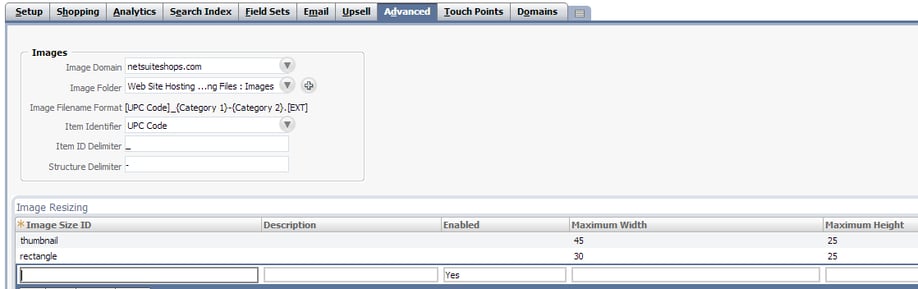
Click on “Advanced” tab
- Select the image domain
- Select the image folder
Creating image folder.
They are two ways are creating folders
- By clicking in “+” symbol next to image folder field

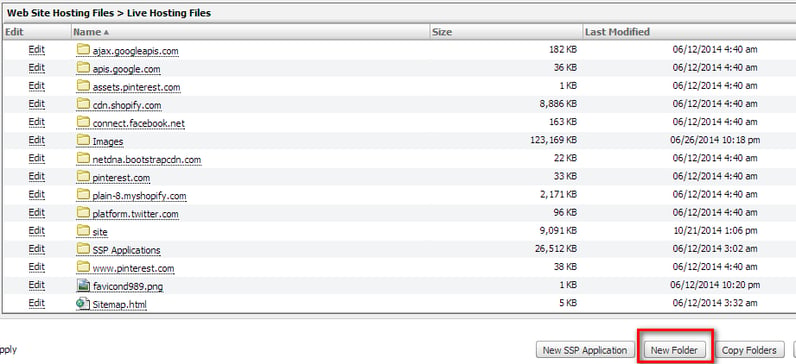
- Go to >> Setup >> Suite Commerce Advanced >> Web Hosting Files
Click on live hosting files and click on New Folder
- Image file format : Based on Item ID Delimiter and Structure Delimeter image file format will be created. Like [Item ID Delimiter]_{Category1}-{Category2}
- Item Identifer : Selet the item identifier to choose a field on item records that system can use link image files with item records.
Note: - This can be any Diplay name, UPC Code, URL Component or any custom field type free form text
- Item ID Delimiter : The default value is an underscore (_). It is used to parse the item identifier from the image file name.
- Structure Delimiter: The default value is a double dash (--). The Structure Delimiter is used to add information to the image file.
Configuring Image for an Item:
Example : We are setting an image for an item name “Black Belt”
- Rename image to “ Black belt _0” if we have one image
- If we need to add mutiple images for an item image name format should be like below
Image 1: Black belt _0
Image 2: Black belt _1
Image 3: Black belt _2
Image n: Black belt _n
- Upload image to folder which we selected in “Image Folder”
- Now veiw the item record an image will be attached but in webstore item image will be displayed.
Updating Field set for displaying Image in Website:
- Add “Item Images(Detail)” in field sets to display item images in website.
- Please make sure that field set updated in” Itemkeymapping.js”. Path to access Itemkeymapping.js is
Web Site Hosting Files > Live Hosting Files > SSP Applications > NetSuite Inc. - Shopping > Custom ShopFlow1 > js > src > app