Last reviewed: 10 October 2026. Product details reflect this review date. Availability and behavior can vary by account, role and release.
Editorial ink illustration: A linked sequence of paper records connects an earlier document to a later version.
A customer record shows 45-day payment terms, but a colleague remembers 30 days. The immediate question is what changed. Other questions follow: when did it change, through which process, and was the change approved? Each question needs evidence, and a single audit entry may not answer all of them.
NetSuite System Notes can help you investigate changes to supported data. System Notes v2 provides a different audit experience for particular supported records. To use either well, identify the relevant record and field, understand your visibility, and distinguish the recorded change from its business explanation.
This guide is for administrators, controllers, and support analysts. It teaches a method for reading change evidence and writing a careful finding. It does not claim that either audit system captures every business event or that every user can see the complete available history.
Start with a precise question
“The customer record looks wrong” is too broad for a useful investigation. Narrow it to the record identifier, the disputed field, the current value, and the time period that matters.
For example: “On customer TEST-C204, when did the selected payment term move from our 30-day term to our 45-day term?” This identifies a specific field change. A separate question is whether an invoice used the expected terms. A customer record and an individual transaction need their own checks.
Record who raised the issue and what business decision depends on the answer. If a collector is about to contact the customer, the immediate need may be to confirm the correct invoice due date. If a controller is reviewing master-data controls, the need may be to establish whether a change had approval.
The audit investigation should support that purpose without expanding into unrelated employee activity. Collect the evidence needed for the question and keep it in an approved location.
Identify which audit system applies
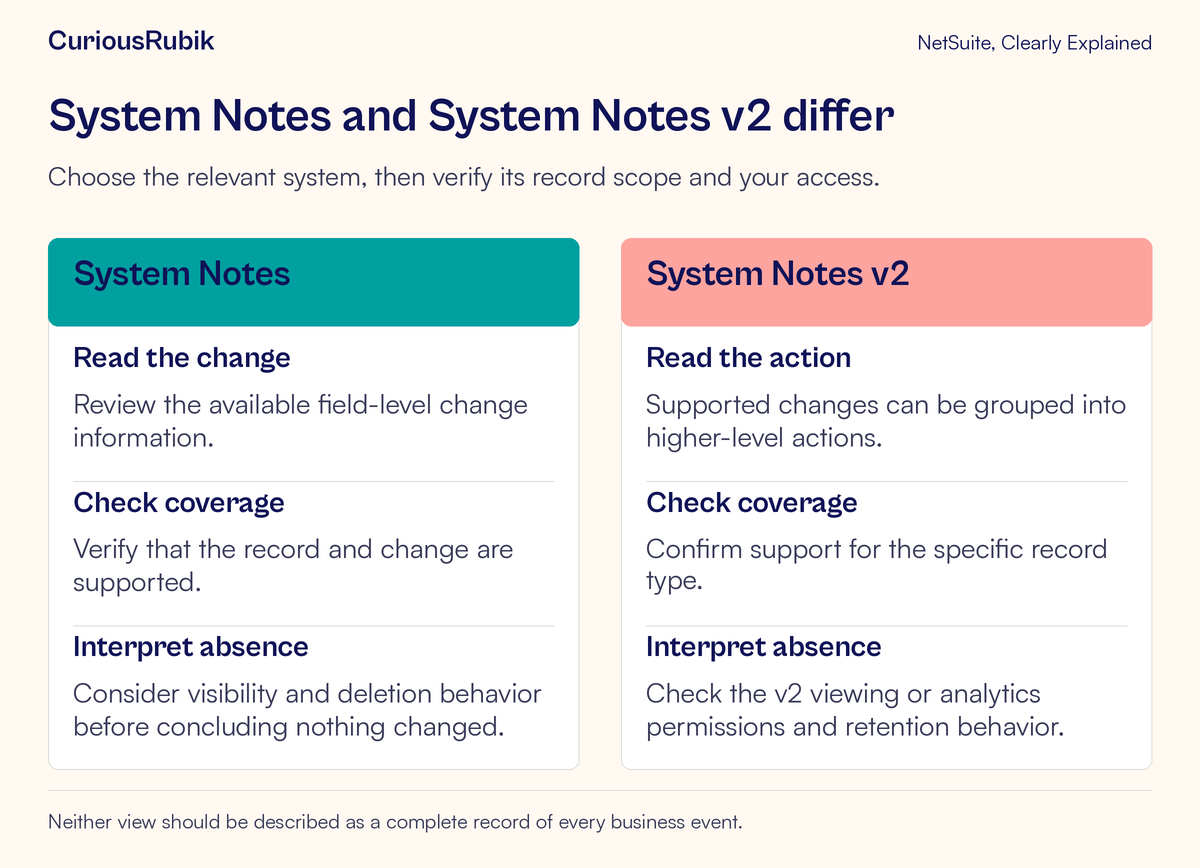
System Notes and System Notes v2 are separate systems with different coverage and presentation. Do not assume that v2 is a switch that gives every record a richer history.
The original System Notes provides change information on records and supported configuration areas where its audit view is available. Entries can include the field, old and new values, date and time, user, type of change, and the interface through which it was initiated.
System Notes v2 applies to a specific supported set of records. It can group detailed changes beneath a larger action and include information such as the role used. Expanding a grouped action can reveal several related changes rather than a single field update.
Check support for the exact record type before choosing the method. A familiar-looking name can be misleading: a configuration record for a transaction type is different from an individual transaction of that type.
In the customer payment-term example later in this lesson, the analyst uses the original System Notes. The example does not imply that customer records are supported in v2. If a v2 link is absent, first check record support rather than concluding that the history was removed.
Understand what your view can show
Being able to open a business record does not automatically establish unrestricted access to its audit information. Permissions and the viewing method matter.
For original System Notes, record access and the Notes Tab permission are relevant to the record-level view. The Notes Tab permission alone exposes the changes made by that user. Querying all original System Notes through the analytics data source requires the Administrator role or the System Notes for Analytics and REST permission.
System Notes v2 also has visibility restrictions. Administrators can view and search all v2 notes; other users with the appropriate view access can see their own notes for a record. Confirm the applicable record and analytics permissions for the method actually used.
An empty result can therefore mean “nothing is visible through this view under these conditions.” It does not automatically mean “nothing happened.” Date filters, record scope, permissions, and the selected data source all affect the result.
If broader access is needed, give the administrator the record, time range, and business reason for the review. Seek the appropriate access or an authorized review rather than asking for Administrator access simply to make the screen look like a tutorial. CuriousRubik's roles and permissions access-review guide provides related context.
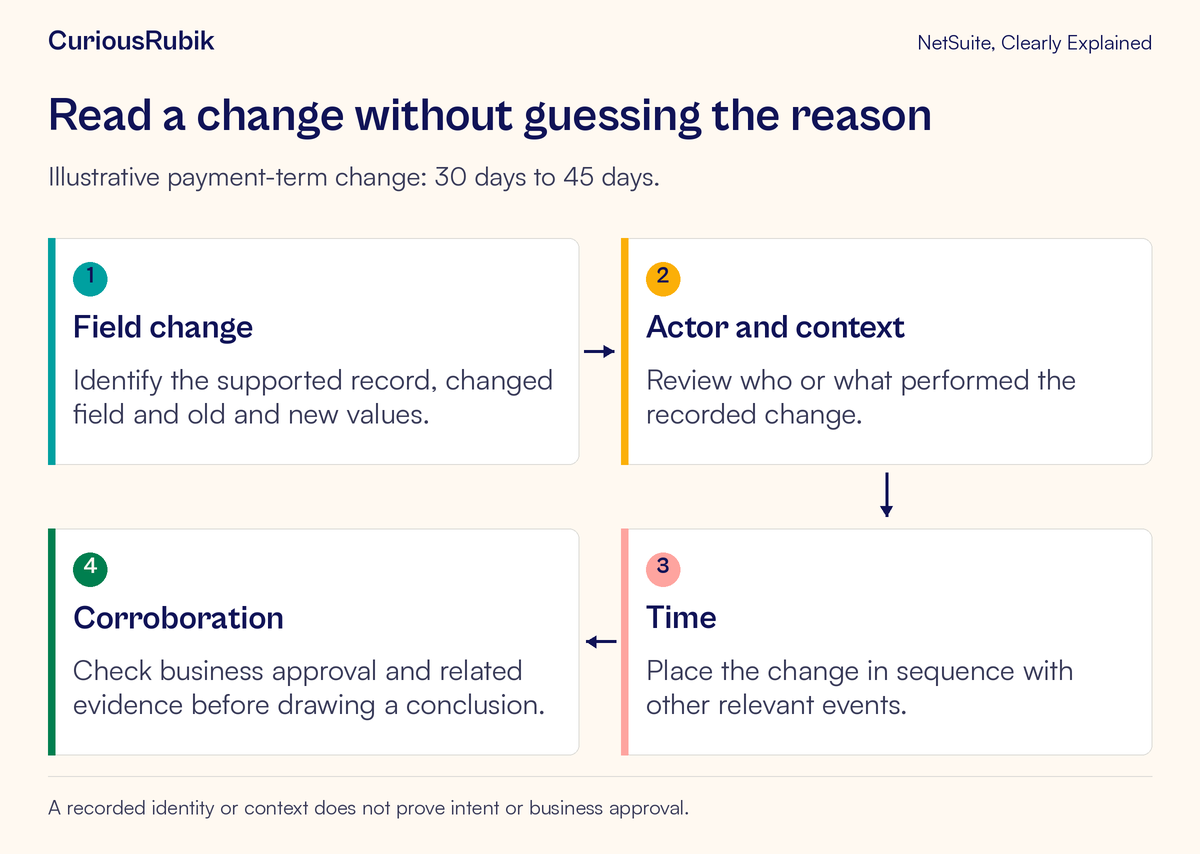
Read the change in a consistent order
Begin with the field or object that changed. Confirm that it is the one in dispute, then read the old and new values. A change to a display name, a selected reference, and a transaction amount are different events even when they appear near one another.
Next, place the entry in time. Record the displayed date and time and establish the time-zone context before comparing it with an email, import result, or integration log. Sort or review enough surrounding history to identify relevant earlier and later changes.
Then inspect the recorded user and execution context. The context can help distinguish an action initiated through the interface from one associated with another process. Review role information where the audit system exposes it.
Finally, look for corroborating evidence: an approved request, an import job, a workflow decision, or a related business record. The appropriate evidence depends on the question. A timestamp near an import is a useful lead, but proximity alone does not prove that the import caused the change.
Follow a fictional payment-term investigation
Imagine a fictional company, Harbor Trail Goods. Its controller asks why customer TEST-C204 now has a 45-day payment term. The controller expected the company's 30-day term and wants to know whether the change was approved.
The analyst confirms the customer identifier and the exact terms field. They verify the current saved value, identify the original System Notes as the relevant audit view, and ask an appropriately authorized reviewer to confirm that the investigation has sufficient visibility.
For this invented exercise, suppose the visible evidence contains a change from the 30-day term to the 45-day term during the period in question. It records an account user and a CSV-import context. These are hypothetical observations, not screenshots or results from a customer account.
The analyst can now make a limited factual statement: “The available change entry shows this field moving from the 30-day term to the 45-day term at the recorded time, with a CSV-import context.” The entry supports that description. It does not yet establish why the source file contained the new value or who approved it.
The next step is to inspect the relevant import evidence, subject to permissions. The analyst checks the reviewed source file and matching key to establish whether the correct customer was targeted. They compare the import time and result with the field-change evidence rather than assuming every row in that import changed successfully.
The controller separately checks the approved payment-term request. Several outcomes are possible. The approved request may support 45 days. The import may have used an unapproved value. Or the evidence may be incomplete. The analyst should preserve those distinctions rather than forcing an immediate conclusion.
The controller also asks whether an already-issued invoice has changed. The customer-field entry cannot answer that by itself. The relevant invoice and its own available history must be inspected. This prevents a master-data finding from being stretched into an unsupported statement about transaction due dates.
If correction is needed, follow the authorized change process and preserve the original evidence. Do not edit the customer merely to make the investigation appear resolved. A correction creates another business event that should be understandable on its own.
Write the finding in three parts
A clear support finding separates observation, limitation, and next check.
Observation: “For customer TEST-C204, the available System Notes entry shows the terms field changing from the 30-day term to the 45-day term. The recorded context is CSV import.” In a real report, include the verified timestamp and evidence reference.
Limitation: “This entry does not establish approval of the terms change. The invoice due-date question has not yet been checked.” Add any visibility or filter restriction that affects the conclusion.
Next check: “Compare the imported customer key and value with the approved change request, then inspect the specific invoice if its due date is disputed.” Name the owner responsible for that check.
This structure is useful even when the answer is incomplete. It tells the decision-maker what has been established and what would resolve the remaining uncertainty. For broader control design, read CuriousRubik's article on audit evidence for journal and master-data changes.
Treat missing and deleted information carefully
The two audit systems handle deleted records differently. Original System Notes does not preserve the same history after a record or transaction is deleted. Some record types have separate searchable deletion information, but that should not be mistaken for a full reconstruction of every previous field value.
System Notes v2 retains information about deletion for its supported records. That distinction is useful only after confirming that the record was within v2's supported scope. It is not a reason to expect v2 history for an unsupported record type.
There can also be a short delay before v2 background updates appear. If an expected recent entry is missing, verify the record and filters, allow for that documented processing behavior, and then investigate through the appropriate access. Do not repeatedly alter the record just to try to produce an audit row.
A recorded name also needs context. Some v2 events use system or bundle-related attribution rules. Treat the displayed identity as a field to interpret alongside the event and execution context, rather than automatic proof that a person personally entered the change or intended its business consequence.
Avoid the common shortcuts
A complete-looking list is not proof of complete visibility. An entry attributed to a user is not proof of business approval. A matching timestamp is not proof of causation. A missing row is not proof that no change occurred.
These are practical distinctions, not reasons to distrust the evidence. System Notes becomes more useful when its scope is clear. Strong findings say exactly what the evidence supports and connect it to the additional records needed for the decision.
Your change-investigation checklist
- Identify the exact record, field, current value, and question
- Select the audit system supported for that record
- Confirm the viewing method, permissions, and filters
- Capture old and new values with their time context
- Review recorded actor, role, and execution context where available
- Compare the entry with related process evidence
- Check business approval separately
- Investigate affected transactions separately from master data
- State missing, deleted, or restricted evidence as a limitation
- Record the finding, owner, and next check before any correction
The aim is a reliable explanation that another reviewer can follow. Start with the change you can demonstrate, keep the limits visible, and let the supporting evidence determine the conclusion.
For the import side of the example, continue with Add, Update, and matching in CSV imports. For help organizing account-level review and support, explore CuriousRubik's NetSuite administration services.