Last reviewed: 10 October 2026. Product details reflect this review date. Availability and behavior can vary by account, role and release.
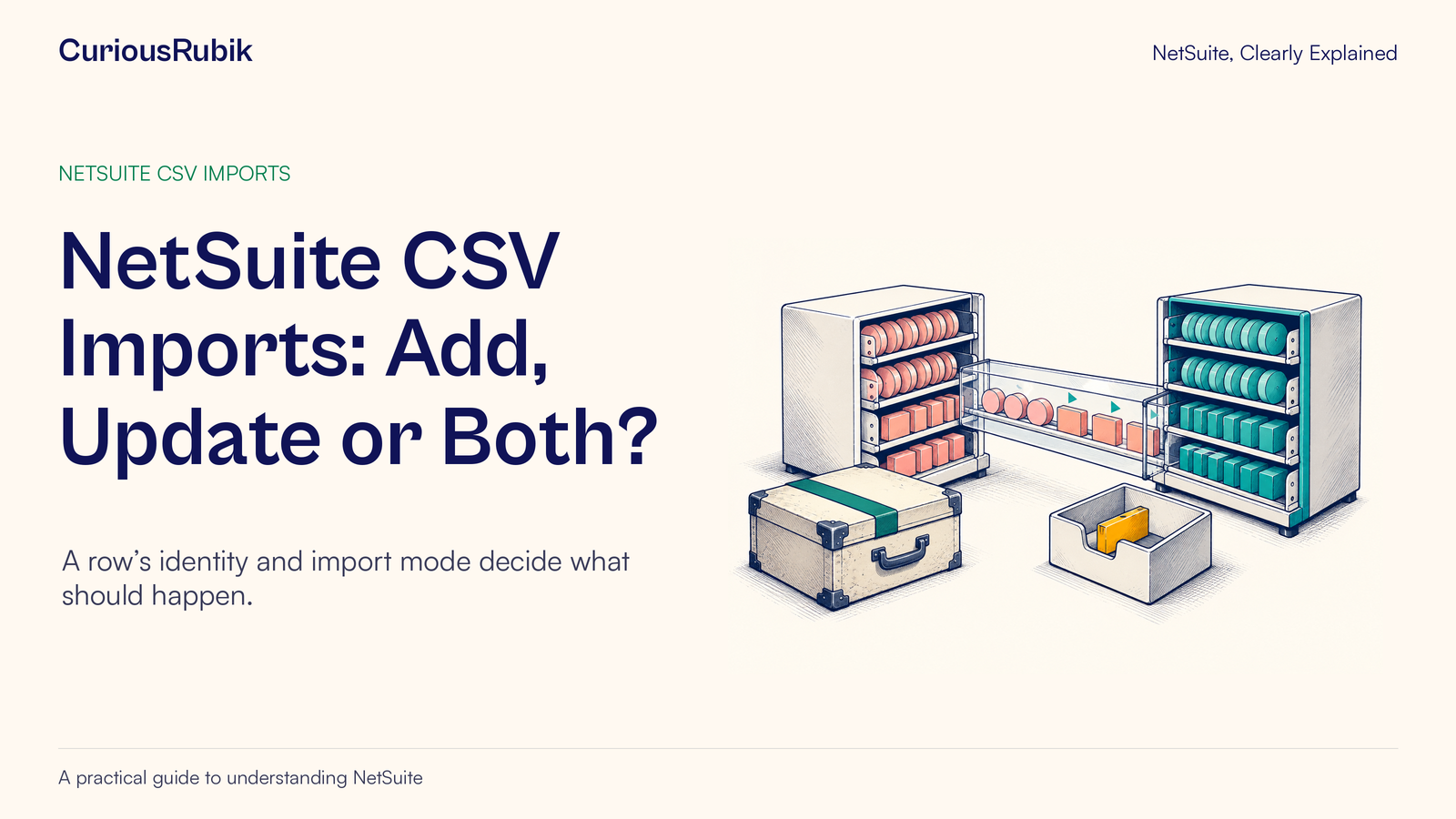
Editorial ink illustration: Two collections of record tokens are compared, with an exception set aside for review.
A CSV file contains rows of values. Before NetSuite can use those values, the import needs to answer two business questions: which record does this row refer to, and what should happen to that record? Getting the file format right is only part of the work.
This lesson explains how Add, Update, and Add or Update interact with record identity. It also shows why a blank cell and a repeated sublist row can produce unexpected results. The goal is to predict a small import before running it, then verify the actual records afterward.
Available record types, fields, and sublists depend on your account's features, configuration, forms, and role permissions. Use a permitted test environment and the role intended for the job. The examples below are hypothetical and do not replace record-specific checks.
Define the change in one sentence
Start with the outcome you need: “Create these new suppliers” or “Change the phone number on these existing suppliers.” A file called supplier-cleanup.csv does not communicate whether records should be created, edited, or both.
List what should remain unchanged as well. If the purpose is updating phone numbers, a payment term, address, or subsidiary relationship should not change incidentally. That list becomes part of your verification.
Assign an owner who knows the business meaning of the data. An administrator can validate mapping and permissions, but the supplier-data owner must confirm which supplier the row represents and whether the proposed value is correct.
For a wider import process, see CuriousRubik's CSV import guide with validation and error recovery. Here, we will concentrate on the meaning of an individual row.
Choose the mode that matches the intention
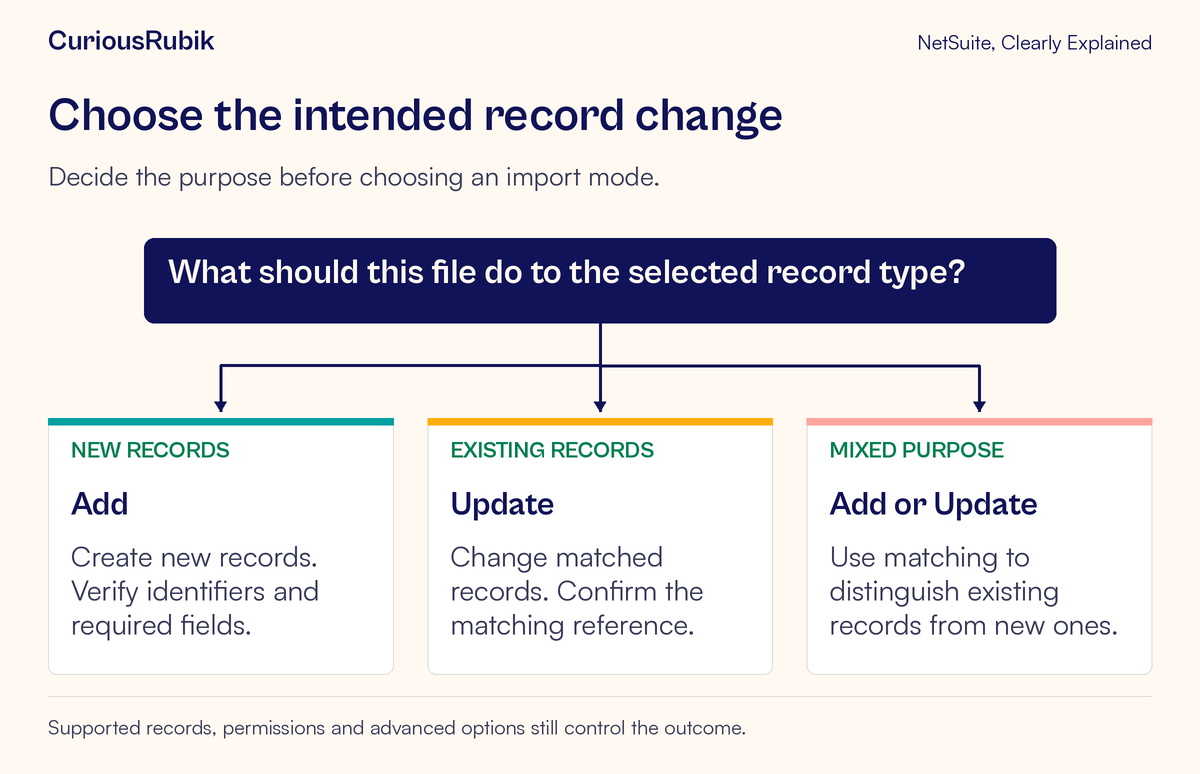
The Import Assistant offers three data-handling modes for the supported import:
- Add is intended for records that are new to NetSuite
- Update is intended for records that already exist and need changes
- Add or Update accommodates a mixture of new and existing records
A mode is an instruction, not proof that the input is correct. Add does not establish that your source list contains no existing suppliers. Update still needs reliable identification of the records to change. Add or Update still depends on correct matching, required fields, and supported behavior for the selected record type.
For a mixed file, consider whether separating new records from updates would make the first pilot easier to inspect. This is a practical review choice, not a NetSuite requirement. Two small, clear jobs may be easier to reason about than one file with several intentions.
Do not select Add or Update merely because it sounds most flexible. Ask what an unmatched row would mean. It might represent a genuinely new record, or it might contain a mistyped identifier for an existing one. Those situations need different business decisions.
Separate record identity from related-record references
The main record needs an identity. A row updating a supplier must identify the intended supplier rather than another record with a similar name. Supported identifiers can include internal IDs, external IDs, and names, depending on the import and mapping.
An internal ID identifies an existing record in the relevant account. For an export-edit-reimport exercise, keeping the verified internal ID with the exported data can help preserve that connection. Do not assume that an identifier copied from a different environment is correct without checking the destination record.
An external ID is an identifier your organization maintains for matching with a source system or dataset. A supplier code in your spreadsheet is not automatically a NetSuite external ID. The destination must contain or receive the intended value through the supported mapping.
Names can be less dependable when spelling, spacing, numbering, or parent relationships vary. A readable label helps people review the file, but readability alone does not make it a safe matching key.
Related fields introduce a second identity question. For example, a supplier row may refer to an existing payment-term record. The import must identify both the supplier being changed and the related value being assigned. A reference type tells the mapping how to interpret a supported list-field value, such as a name or an ID. Not every field supports the same reference choices.
Keep the two questions separate in your review: “Which supplier is this?” and “Which payment term does this value mean?” A correct answer to the first does not validate the second.
Work through three fictional supplier rows
Imagine a fictional supplier-maintenance exercise with three source codes: SUP-101, SUP-203, and SUP-104. These are illustrative external identifiers, not real NetSuite internal IDs. The team first confirms the corresponding external-ID values and record support in its permitted test account.
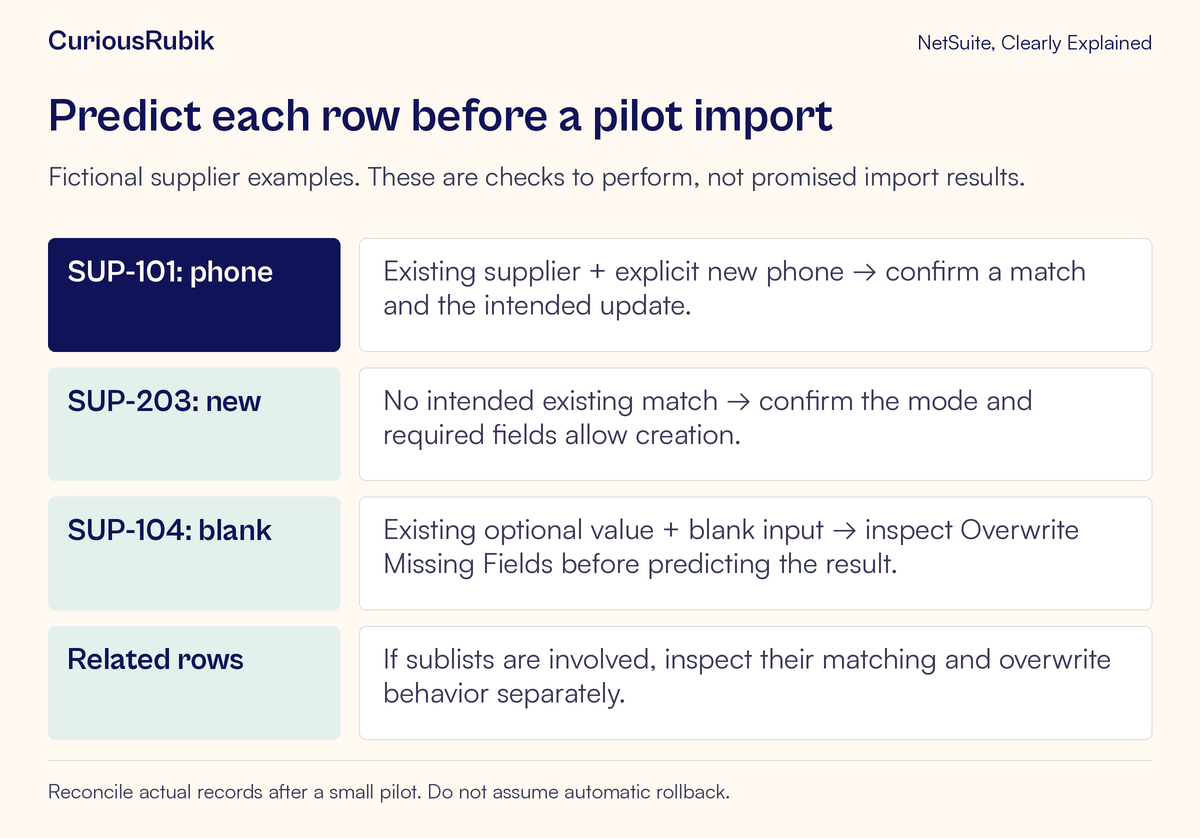
SUP-101 is an explicit update
SUP-101 represents an existing supplier. Its current phone value is “old test number,” and the approved source value is “new test number.” The business intention is to update that one field while preserving unrelated values.
Before running the pilot, the reviewer confirms that the key resolves to exactly the intended supplier. The selected mode must permit an update, the phone column must map to the correct field, and the importing role must be allowed to change the record.
Afterward, the reviewer opens the matched supplier and checks the saved phone value. They also verify that no second supplier was created and that the agreed unchanged fields still have their original values. A successful job count alone cannot establish those facts.
SUP-203 represents a new supplier
SUP-203 has no intended existing match. The team confirms that it is genuinely new and supplies the required data for the selected record type and account configuration.
The selected mode must permit creation. The reviewer predicts that one new supplier should result, then verifies the created record and its assigned identifiers after the pilot. If the source code already belongs to another record, the team resolves that identity problem before trying again.
This row also illustrates why an update-only file should be reviewed for new records in advance. An intention to create a supplier should be explicit rather than left to a failed update and a hurried change of import mode.
SUP-104 contains a blank optional field
SUP-104 represents an existing supplier with a populated optional phone field. The CSV phone cell is blank. The business owner must decide whether that blank means “leave the current number alone” or “remove the current number.” The file cannot explain that intent by itself.
With Overwrite Missing Fields disabled, a mapped empty CSV field does not normally clear the existing value. Enabling the option allows mapped blanks to clear values where supported. It does not apply to fields that are not mapped.
The team writes down the intended result and checks the option before testing. If different rows need different meanings for blank values, separate the work or design a supported explicit mapping approach. A single ambiguous blank policy is a poor basis for a large cleanup.
Treat sublists as another layer of data
A record can contain a set of related rows, called a sublist. The identity of the main record does not necessarily identify which sublist line should change.
For supported keyed sublists, matching key values can allow selective updates when Overwrite Sublists is disabled. Unmatched keys can add rows. For non-keyed sublists under that setting, imported rows are added rather than selectively matched in the same way.
Enabling Overwrite Sublists can replace the existing sublist data with the supplied rows. This is a materially different instruction from changing one body field. A file containing one row may be an incomplete replacement for a record that currently contains several important rows.
Do not use blank sublist rows as a general deletion technique. Blank-field handling and whole-sublist replacement have different rules, and supported behavior varies by sublist. Verify the precise sublist before extending a successful body-field pilot to addresses, pricing, or other related rows.
For the fictional supplier exercise, the simplest first pilot leaves sublists outside scope. If a later exercise includes them, record the before-state, the matching keys, and the complete intended after-state separately.
Check permissions and dependent behavior
The importing role needs the Import CSV File permission and the relevant record access. Available import choices also depend on enabled features. A field visible in another person's account or form may not be available in your mapping.
Review automatically proposed mappings rather than assuming matching column labels have the same meaning. Confirm the selected record type, required fields, related-record references, and any defaults used when a column is absent.
Changes can also populate dependent values, much as changing a related field during ordinary entry can do. That is why a pilot should inspect fields beyond the one you intended to change. Review any relevant scripting and workflow settings with the administrator, particularly when the import could trigger further processing.
A saved mapping is useful, but it is not permanently validated. Recheck it when the source file, account configuration, custom form, or intended outcome changes.
Reconcile the pilot before scaling up
Choose a small file that includes the important cases, not simply the first few rows. Include an explicit update, a genuine new record if creation is in scope, and a meaningful blank or reference edge case.
Keep the original file, the reviewed mapping and options, the role, and a permitted before-state of the records. After the job completes, compare the status and error results with the actual destination records. Count created and updated records, check their identifiers, and verify important business values.
Errors need careful interpretation. An after-submit script can fail after a record was already created or updated. In that situation, rerunning the entire import may repeat work that already succeeded. Establish the record state and the failed step before deciding how to retry.
Do not assume canceling or correcting an import automatically restores earlier values. Plan recovery before the wider run, and retain enough evidence to identify precisely which records changed. For reading available change evidence, continue with NetSuite System Notes and CuriousRubik's broader article on audit evidence for journal and master-data changes.
Your pre-import checklist
- Write the intended change and the fields that must remain unchanged
- Confirm the destination account, record type, role, and permissions
- Verify the main matching key and any related-record references
- Choose Add, Update, or Add or Update deliberately
- Decide what mapped blanks mean
- Check sublist keys and overwrite behavior separately
- Review required fields, defaults, and dependent processing
- Predict a representative pilot's results before running it
- Reconcile job results with saved records and business values
- Resolve failures and recovery steps before increasing the scope
A dependable import begins with a prediction you can test: this row identifies this record, changes these values, and leaves these other values alone. If that prediction is unclear, improve the file and mapping before increasing the number of rows.
For help preparing and reconciling a larger data move, explore CuriousRubik's NetSuite data migration services. Use the account-type guide when choosing the pilot environment.