Last reviewed: 10 October 2026. Product details reflect this review date. Availability and behavior can vary by account, role and release.
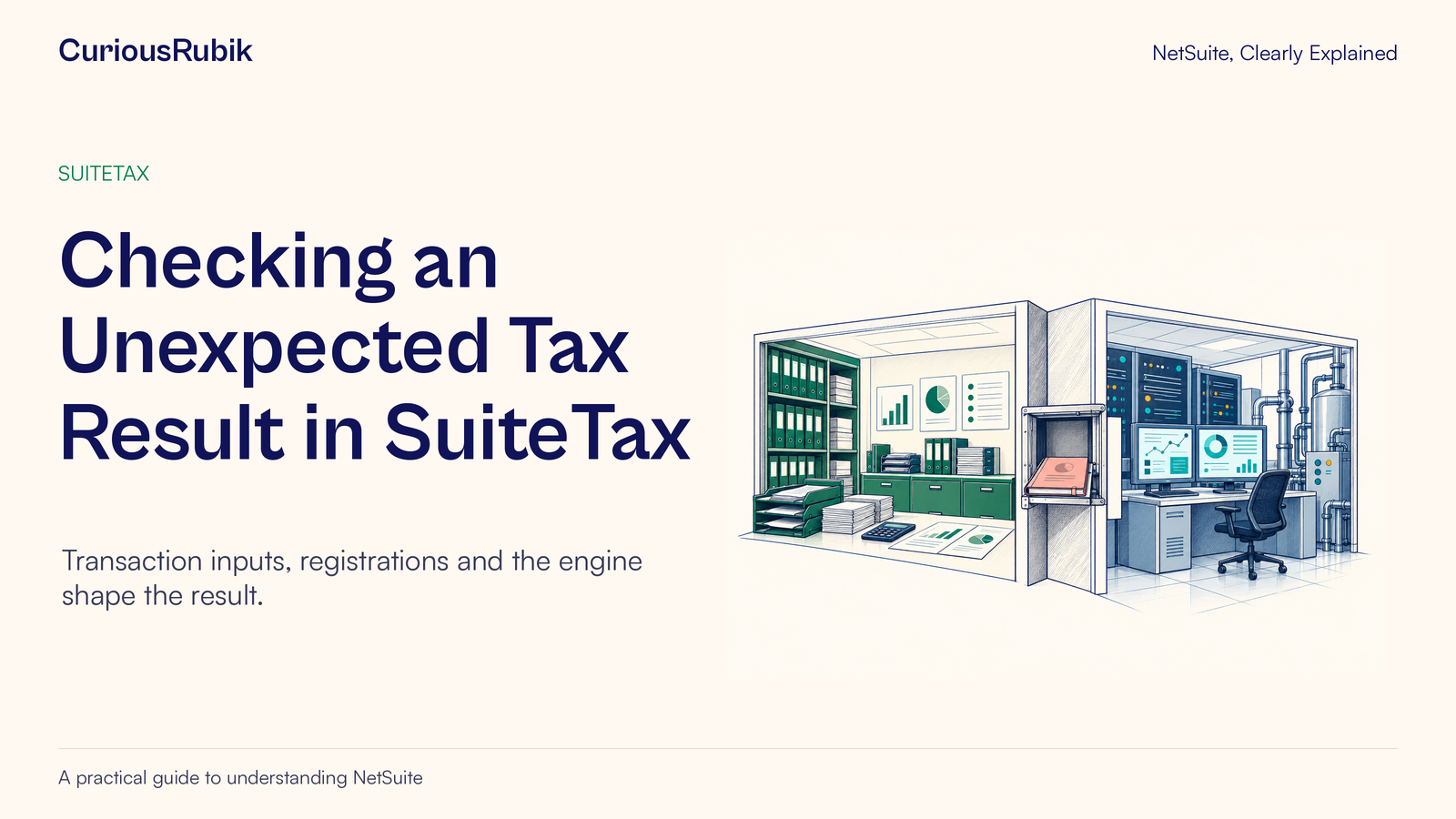
Editorial ink illustration: A controlled opening connects two separate specialist workspaces.
An order produces an unexpected tax amount. The item and price look familiar, so a user assumes the rate must be wrong. But the transaction contains an incorrect ship-to country. The calculation may be working with the wrong context before it ever reaches the question of which rate applies.
SuiteTax separates several responsibilities. Transaction data describes the business event. The SuiteTax API handles context and communication. A configured tax engine determines relevant taxability and calculations, with the result returned to the transaction.
This article explains those relationships and a safe investigation sequence. It does not determine a tax liability, recommend a tax rate or certify compliance. The responsible tax professional must approve the legal treatment and the configuration intended to implement it.
First, identify the account’s tax environment
NetSuite supports different tax environments, including Legacy Tax and SuiteTax. Their records, fields and instructions differ. Establish which environment the account uses before following a procedure or comparing screenshots.
SuiteTax is an account-level feature. It is not a setting that applies only to one selected subsidiary. Enabling it is not reversible: once enabled, the feature cannot be disabled.
For an existing account, migration changes tax-related records and requires preparation, compatibility checks and testing. Do not enable SuiteTax in production as an exploratory fix for one transaction. The implementation team should assess the affected features, integrations, records and tax processes and test the transition in an appropriate sandbox.
The rest of this lesson assumes SuiteTax is already configured for the review. A user studying a result should not need to change the account’s tax environment simply to understand it.
Transaction context: the facts being supplied
Tax calculation begins with the facts represented by the transaction. Relevant context may include the selling or purchasing entity, subsidiary, transaction date, customer or supplier, item information and addresses.
The exact relevance of each fact depends on the transaction and configured tax engine. Avoid turning one familiar example into a universal rule, such as assuming the ship-to address always determines every tax outcome.
For an investigation, record the actual values on the transaction. Do not rely only on the current address in a customer master or a colleague’s memory of the order. Establish which values were supplied for this specific calculation.
Then compare those values with approved business evidence. If the intended destination is different from the recorded destination, resolve that data discrepancy before asking whether a returned rate is correct.
A technically valid calculation based on incorrect inputs can still produce the wrong business result. This is why the first review belongs at the transaction and source-data level.
Registration context: which tax setup applies?
In SuiteTax, a subsidiary’s Tax Registrations subtab connects relevant nexus information with a tax registration number, validity dates and a selected tax engine.
For product navigation, think of the nexus as part of the configured tax context that the system determines for a transaction. Whether an organization is legally required to register or collect tax is a separate professional judgment. The system record is not a legal conclusion.
Validity dates matter. The transaction date can affect which registration is relevant where multiple registrations exist for the same nexus. A registration that looks correct today may not be the applicable one for a historical transaction.
Review the legal entity and registration together. A valid registration belonging to a different subsidiary does not automatically establish the correct setup for the transaction being investigated.
Changes to registrations and engine assignment are consequential configuration work. Assigning them to a subsidiary requires at least Edit-level Subsidiaries and Subsidiary - Tax Engine Selection permissions. Those technical permissions should be paired with the organization’s approved tax-change process.
API and engine: two different jobs
An API is an interface through which software components exchange information. In this context, the SuiteTax API connects transaction information with the relevant tax engine and brings calculation results back.
The API handles responsibilities such as address sourcing, nexus determination and tax invalidation. The engine handles taxability, tax codes and rates, and calculation logic for its supported context.
Tax engines are delivered as bundles or SuiteApps and must be configured appropriately. The presence of the SuiteTax feature alone does not demonstrate that the right engine has been installed, activated and assigned for every required registration.
There are limited documented situations in which an engine is not required. For example, a nexus configured as tax-exempt can omit the engine and does not calculate tax. That setting must reflect an approved tax determination; it is not a workaround for an unexplained calculation failure.
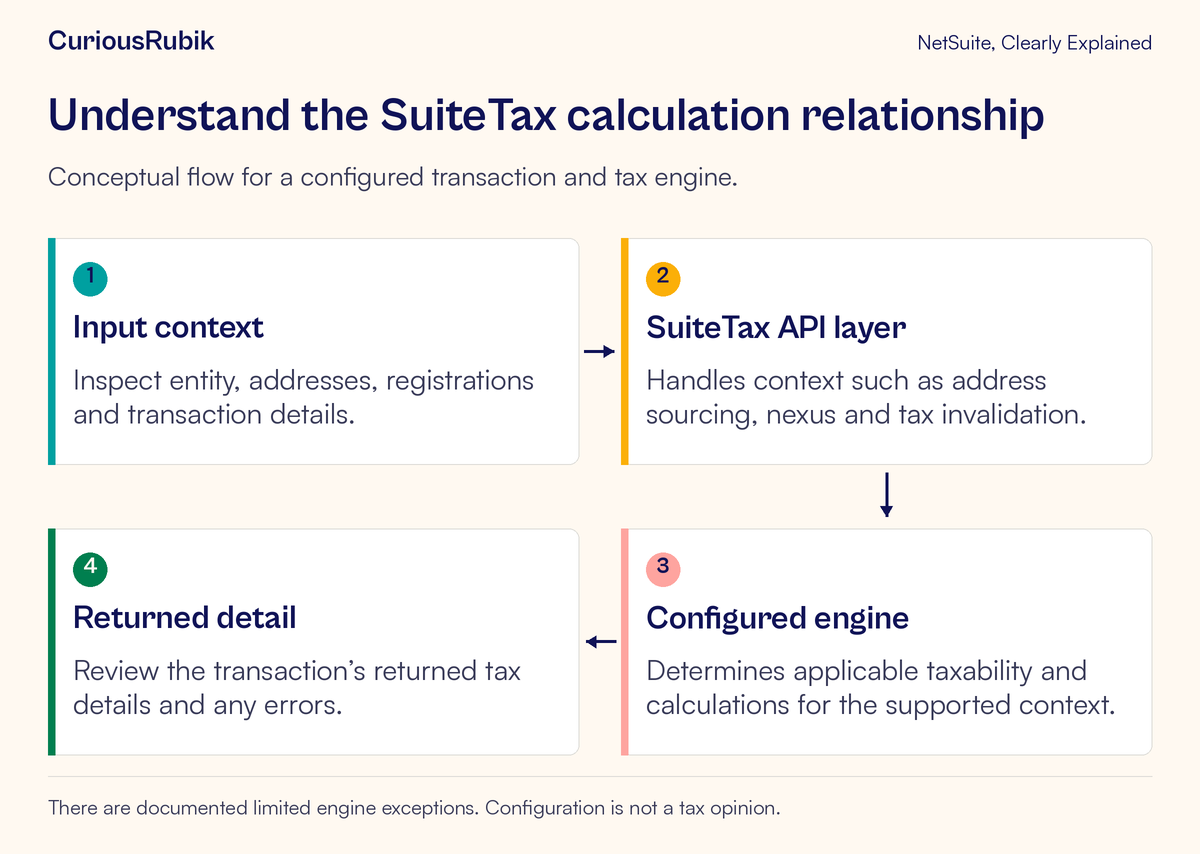
This division helps route an issue. Incorrect transaction data calls for source-data review. An unexpected selected nexus calls for context and registration investigation. An engine result inconsistent with the approved expected treatment calls for review of the engine’s setup and supported logic.
Several issues can coexist. Document what each check establishes rather than declaring the engine wrong at the first unfamiliar amount.
Read the returned tax details
SuiteTax transaction forms include a Tax Details subtab and tax summary information. Returned detail can include the tax type, code, basis, rate, amount and information from the engine.
Start by connecting the tax detail to the corresponding transaction line. A transaction can contain several lines with different relevant treatment, so a single total may hide the source of a discrepancy.
Check the basis as well as the rate. If the amount used as the tax basis is unexpected, changing a rate would address the wrong input. Discounts and other transaction details may also matter according to the engine’s implementation.
Where available and authorized, Preview Tax lets a user inspect calculated amounts before saving. Previewed results are only saved with the transaction record. Do not treat a preview as proof that the final saved transaction contains that same result.
Overrides deserve separate attention. A manual override changes the investigation because the displayed result may no longer be the ordinary calculation path. Record whether an override is present and who approved it. Do not clear or add one merely to make a number match an expectation.
Work through an incorrect ship-to country
Consider a fictional sale in a permitted test environment. The customer order states delivery to Country A, but the transaction’s ship-to country has been entered as Country B. The example intentionally supplies no tax rate or legal conclusion.
The reviewer first confirms the transaction identifier, entity, subsidiary and date. They compare the relevant address values with the approved order evidence and identify the country mismatch.
Next, they capture the selected nexus, registration and returned tax detail as the initial observation. This preserves the evidence needed to understand what changed during the test.
The authorized user corrects the test transaction’s address to the intended value. The team then runs the applicable recalculation or preview process in accordance with the configured workflow and inspects the new result. They do not assume that changing one country must always select a different nexus or rate.
The tax owner compares the corrected result with the approved expected treatment. If it still differs, the investigation continues through registration validity, engine assignment, item or entity taxability, and returned detail.
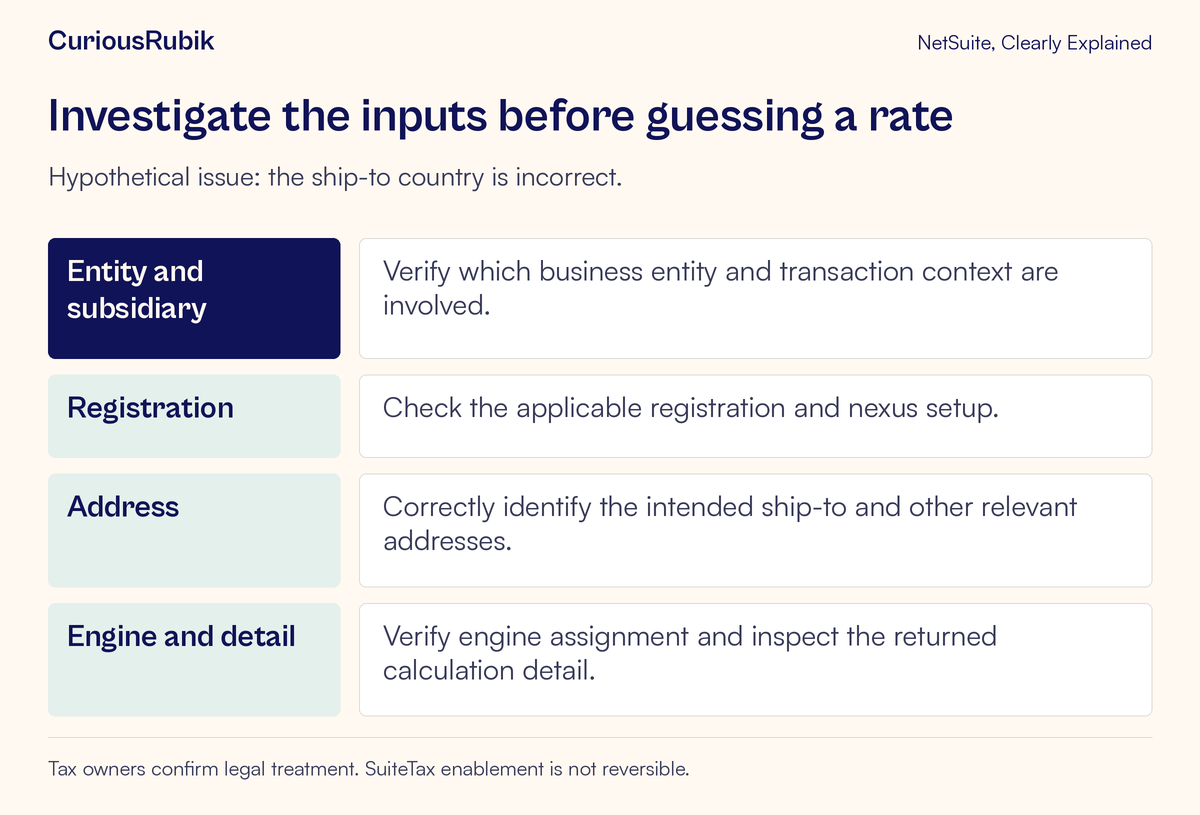
The exercise is successful when the team can explain the input, the selected context and the reviewed result. A changed tax total alone is not a sufficient acceptance criterion.
For a live transaction, the correction process also needs to consider approvals, accounting-period controls and any already-issued documents. Do not assume the same edit is appropriate simply because it worked in a test record.
Keep presentation separate from tax treatment
A translated label or different decimal separator can make tax information harder for reviewers to compare. It does not establish that the underlying calculation has changed.
Record the currency, amount and date unambiguously when comparing users or outputs. The globalization lesson explains how language and formatting differ from localized business behavior.
Likewise, subsidiary context affects more than the name shown at the top of a transaction. Establish the correct legal entity and approved registration setup before asking a reviewer to compare results across subsidiaries. The country-specific requirements lesson helps separate local needs from assumptions about a shared account setup.
A useful acceptance test should include the output your business actually relies on, such as the saved transaction detail and the relevant customer-facing form or report. An accurate-looking preview screen alone cannot prove the whole process is ready.
Common failure signals
If no tax detail appears, confirm the tax environment, relevant permissions, registration context, engine assignment and any intended exempt treatment. Absence of tax is an observation to explain, not automatic evidence of an exemption.
If an old instruction does not match the screen, check whether it concerns Legacy Tax, a different engine or a different account configuration. Do not infer that a missing field should be recreated through customization.
If a registration appears correct but is not selected, inspect the transaction date and validity dates as well as the nexus determination path.
If a result matches a manual expectation only after an override, record the approved reason and review the underlying mismatch. An override can hide a recurring data or configuration issue if its cause is never resolved.
For related review practices, see NetSuite audit evidence for controlled changes and local-language finance user acceptance testing.
A tax-owner handoff checklist
- The account’s tax environment and relevant feature setup are confirmed.
- The transaction, entity, subsidiary and date are identified.
- Relevant addresses agree with approved business evidence.
- The selected nexus, registration validity and engine assignment are understood.
- Returned line-level details and any overrides have been inspected.
- The responsible tax professional has reviewed the expected treatment and result.
- Any live correction follows the approved accounting and document-control process.
For help organizing the configuration and evidence around your tax team’s decisions, explore CuriousRubik NetSuite administration. Begin with a representative transaction and the precise point where its context or result becomes unclear.