Last reviewed: 10 October 2026. Product details reflect this review date. Availability and behavior can vary by account, role and release.
Editorial ink illustration: Two colleagues test a replacement tool before retiring an earlier one.
Two colleagues say they use “NetSuite with Outlook,” yet they may be using different products. One may have the legacy NetSuite for Outlook SuiteApp. Another may use NetSuite Connector for Outlook, a separate add-in. An instruction that fits one should not be assumed to fit the other.
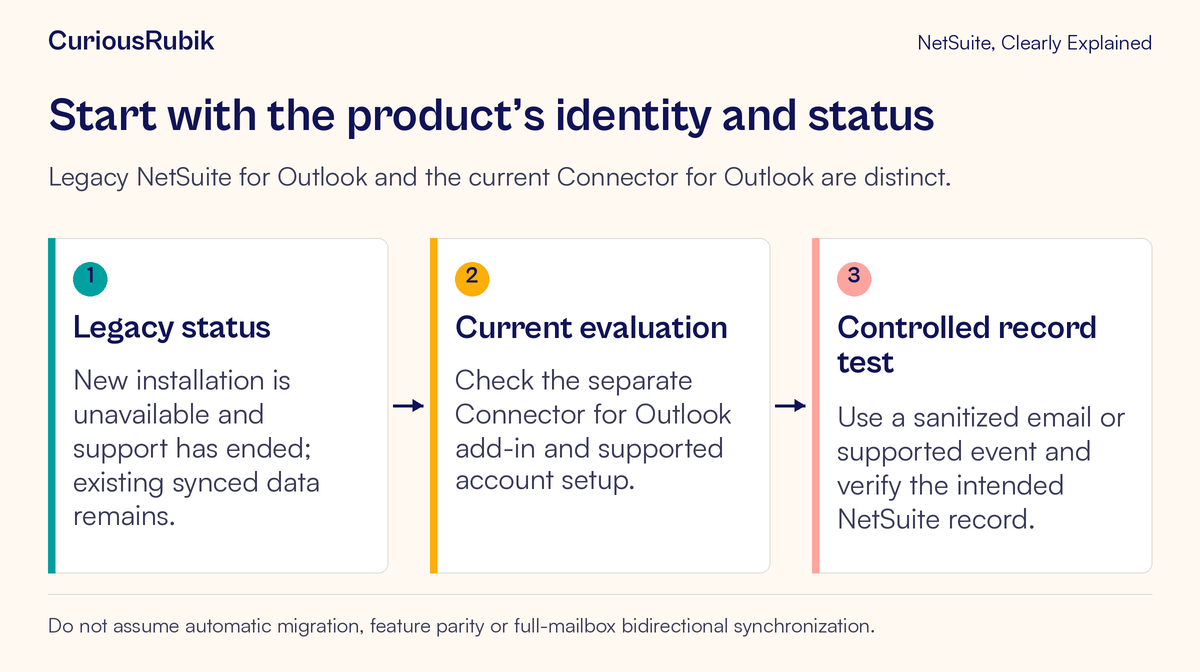
As checked on 10 October 2026, support for the legacy NetSuite for Outlook SuiteApp has ended and new installation is unavailable. Existing customers with the SuiteApp installed can continue using it, and previously synced data remains available. Issue fixes and enhancements are no longer expected for that legacy product.
NetSuite Connector for Outlook is separately described as an Outlook add-in for syncing received emails and events to corresponding NetSuite records. This lesson explains how to identify the product, evaluate one bounded sync, and avoid treating a transition as an automatic migration. Recheck product status and compatibility before making an account change.
Start with the installed product's exact identity
Ask the administrator to establish the full product name, provider, installed component, and supported environment. Capture those details from the actual setup rather than relying on a colleague's shorthand or an old training document.
Keep three possibilities separate: the legacy NetSuite for Outlook SuiteApp, the current NetSuite Connector for Outlook, and any other independently supplied integration your organization may use. This lesson's connector capabilities apply to the named current connector, not to every product that links the two applications.
Also record the user's role and the task they expect to complete. “Associate this received customer email with the correct contact record” is specific enough to test. “Keep Outlook and NetSuite in sync” is broad enough to hide assumptions about mailboxes, contacts, calendars, direction, and timing.
Use SuiteApp provider and ownership checks for the wider evaluation. A familiar logo or name does not establish identical functionality or a shared upgrade path.
Interpret the legacy status without creating a new problem
The end of support does not mean all historical synced data disappears or that every existing installation instantly stops functioning. It does mean the team should avoid planning a new rollout around an unavailable legacy installation and should review the operational implications of relying on it.
Make an inventory of the tasks current users perform. Which emails or events do they associate with NetSuite? Which records do they expect to find later? Which workflow depends on that history? An accurate inventory is more useful than replacing the tool based only on its age.
Do not uninstall the legacy component as the first step of an investigation. The administrator should understand dependencies, supported removal behavior, and how users will complete their work during any approved transition.
Keep existing data and new synchronization decisions separate. Historical records may remain valuable even if the team changes how future emails are associated. A transition plan needs to explain both without promising that every legacy capability or preference transfers automatically.
Understand the current connector's record-focused use
The current connector supports associating a received email with a Customer, Lead, Prospect, Contact, or Opportunity record. Email sync includes the subject, message, and selected attachments. Event sync can associate a received event invitation with those supported record categories.
Those capabilities describe a bounded association with business records. Do not infer automatic full-mailbox synchronization, automatic migration from the legacy SuiteApp, or identical behavior in both directions. Each broader requirement needs separate verification against the actual product and configuration.
Selecting the correct record is a business decision. A person's email address may appear in a context that does not identify the intended customer, opportunity, or contact unambiguously. Review the target's identity and relationship before sharing the message into the account.
The lesson on leads, prospects, and customers helps clarify those record categories. Record relationships help explain why an email associated with one object may not serve the same purpose as an email associated with another.
Practice with one sanitized email
Imagine a fictional company, Oakmere Advisory. Its employee Mara receives an invented message about an upcoming product discussion. The exercise uses a known fictional contact and contains no real customer, personal, or payment information.
The test email has a clear subject, a short body, and two harmless attachments: a sample agenda and an internal practice note. The agreed test is to sync the email and the agenda only. The internal note should remain excluded.
Before the test, the administrator confirms the supported setup, authorized user access, and safe target record. Mara then identifies the received email, reviews the intended record, and selects only the attachment covered by the exercise.
The acceptance criteria are precise:
- The association is made with the intended fictional record
- The subject and message are available as expected
- The selected agenda is included
- The unselected practice note is not included
- The authorized reviewer can find and inspect the result
These are expectations for an account test, not a report that this exercise was executed in a live NetSuite environment. Your team must observe and record the actual results.
Review the message as data you are sharing
Email threads can carry more information than the latest sentence suggests. Before syncing a real message, inspect quoted history, attachments, signatures, and any unrelated details. Confirm that the target record and the people with authorized access to it are appropriate recipients for that content.
Do not select every attachment by habit. An email about a customer meeting could contain a confidential internal worksheet or another customer's information. The act of associating the email with a business record can broaden who encounters it through the account's permitted access.
Follow your organization's retention, privacy, and record-access rules. If the content is too broad, ask the process owner for the approved way to record the necessary business information. Do not improvise a workaround that exposes more data merely because it is technically easy to sync.
For the practice exercise, have Mara explain why the agenda belongs with the fictional contact and why the second file is excluded. This turns attachment selection into a deliberate decision rather than a checkbox routine.
Test an event separately from an email
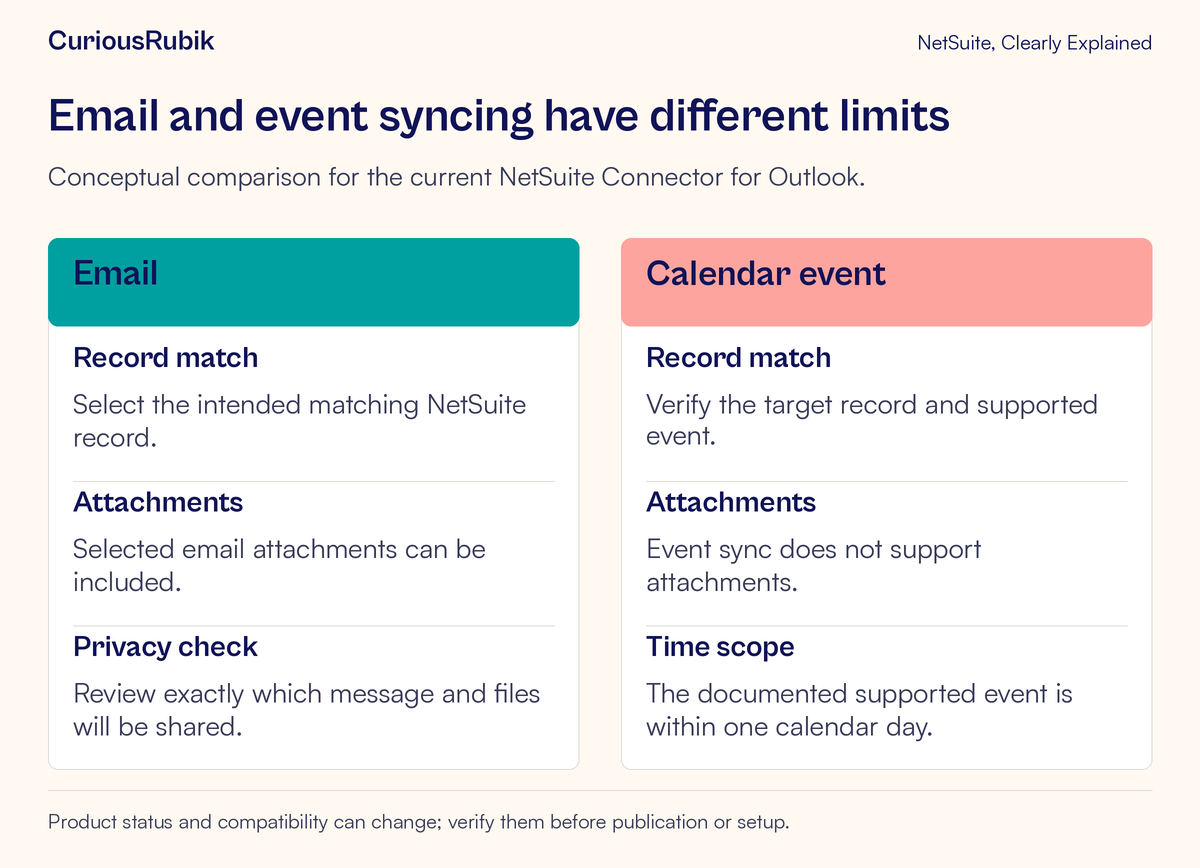
Email and event sync have different limits. The current connector's event sync does not support attachments. Its documented event scope requires the event to start and end on the same calendar day; a multi-day or overnight event is outside that limit.
Oakmere therefore creates a sanitized received invitation for a meeting from 10:00 to 10:30 on one date. The administrator confirms the time-zone context used for the exercise. Mara associates the supported event with the intended fictional record and verifies the date, time, and record identity afterward.
A file attached to the event invitation is not an expected event-sync output. If the team needs documents available through another approved route, that is a separate requirement with its own sharing decision. Do not treat the missing event attachment as proof that email attachment sync is also unsupported.
Then consider an overnight meeting from 23:30 to 00:30. It crosses a calendar-day boundary and should not be used as the ordinary success case for this connector. Do not change a real meeting's dates solely to force it through a sync path. Use an approved alternative process for unsupported cases.
Verify the destination before repeating a sync
A completed action in Outlook should be followed by a destination check in NetSuite. Confirm the actual associated record and inspect the relevant message or event evidence through an authorized role.
If the result is unclear, investigate before repeating the action. Record which product was used, the source message or event reference, target record, time, and visible result. Avoid assuming that a missing confirmation means nothing was saved.
For Mara's email, the distinctive fictional subject and selected agenda make the result easier to identify. For the event, the intended date and start time help distinguish the test from another meeting. Use safe identifiers rather than placing confidential email content into a broad support request.
Also test the view used by the business colleague who needs the information. An administrator finding the association does not prove that the intended salesperson or support user can find it under the appropriate access rules.
Plan a controlled transition from observed needs
If the team wants to move away from the legacy product, create a task-by-task comparison. List the actual required behaviors, what the current connector supports, what your test established, and any unresolved gaps.
Include user training, permissions, supported client setup, record matching, attachment handling, event limitations, and support ownership. Treat migration of settings or history as an explicit question. Do not assume that installing the new add-in converts the old integration or recreates all previous behavior.
Choose a small authorized pilot and agree what would justify a wider rollout. Preserve a way for users to continue necessary work during the evaluation. Installation, new access grants, and retirement actions should follow the organization's approval process.
Communicate the practical changes in ordinary language: which product to use, which task it supports, how to verify the target record, and what to do with unsupported events. Avoid asking users to infer those details from a changed icon.
Troubleshoot with the product name in the first sentence
If installation instructions appear unavailable, establish whether they concern the legacy SuiteApp. Searching for an old name can lead the team toward an installation path that no longer exists.
If an event will not sync, check its start and end dates and whether it crosses midnight in the applicable setup. Confirm that it is the supported event type and that the account and user access are correct.
If an attachment is missing, first ask whether the item was an email or an event. For an email, verify that the intended attachment was selected. For an event, recognize the stated attachment limitation instead of retrying indefinitely.
If the association appears on the wrong record, capture the evidence and use the organization's approved correction process. Review the matching step before trying another message; otherwise the same mistake can be repeated at greater scale.
A checklist for a trustworthy sync
- The exact installed product and provider are known
- Legacy status and current connector capabilities are kept separate
- Compatibility and user access were confirmed for the actual setup
- The target business record was checked before syncing
- Email content and selected attachments are appropriate to share
- Event tests respect the same-day and no-attachment limits
- Destination evidence confirms the association
- Uncertain outcomes are investigated before retrying
- Any transition has an owner, tested requirements, and approved steps
For teams evaluating that change, CuriousRubik's NetSuite administration services can help organize product identity, access, and account-specific testing. The useful question is whether the named product reliably completes your defined record task.