For Singapore finance teams who want each SGD and USD bank account reconciled in NetSuite every month, without spreadsheets.
Last reviewed: 8 November 2026. Product details reflect this review date. Availability and behavior can vary by account, role and release.
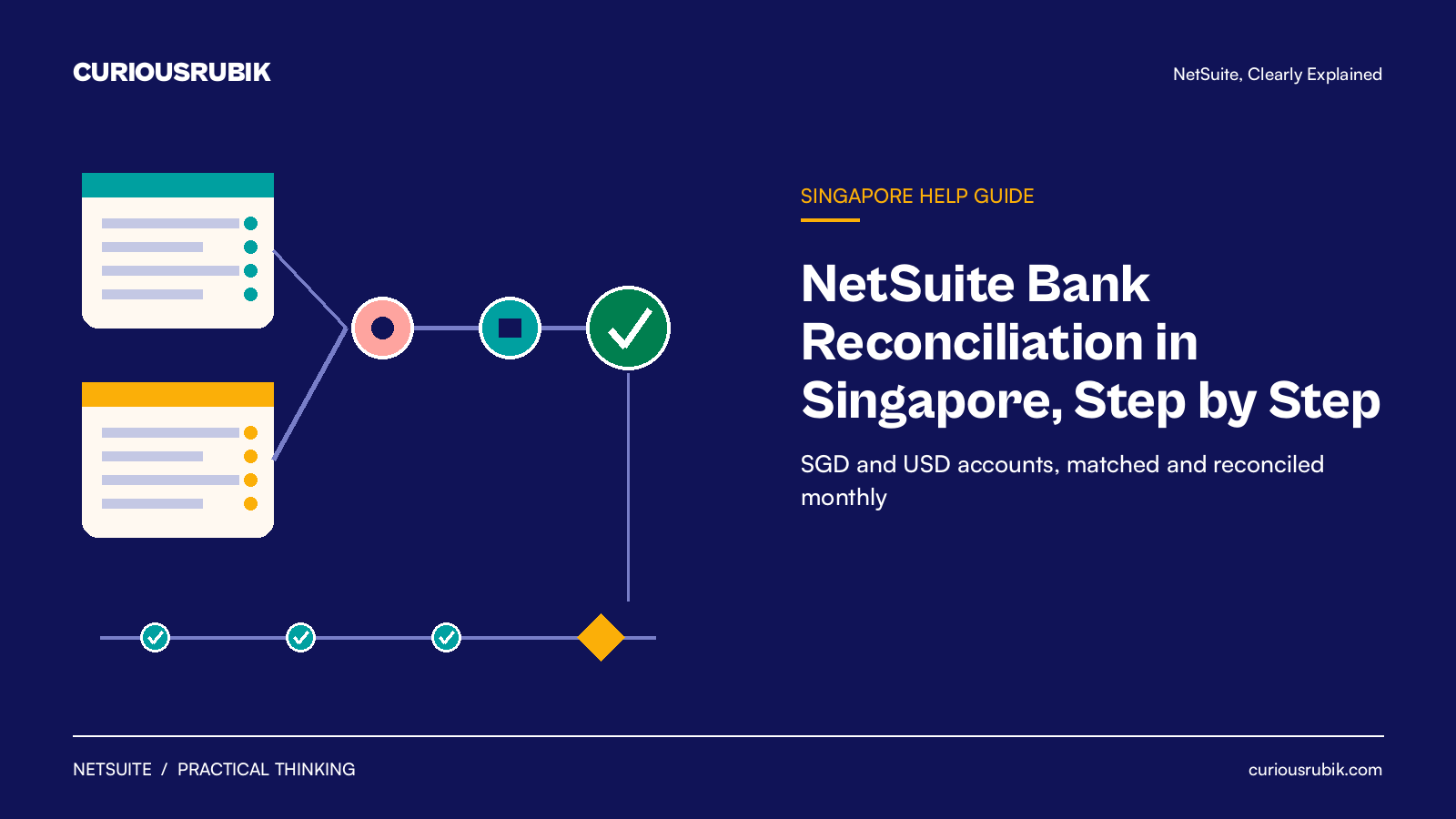
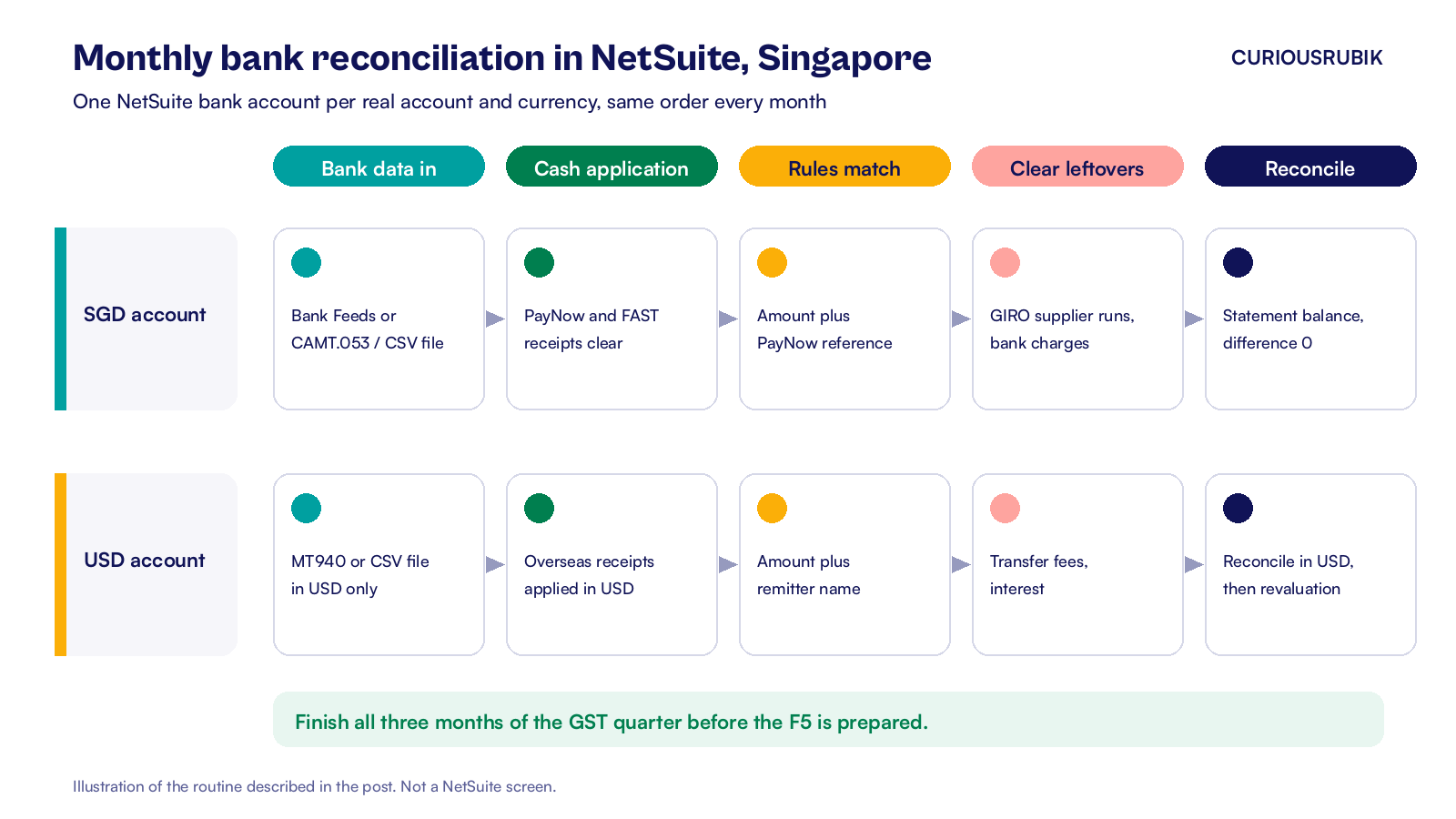
NetSuite bank reconciliation in Singapore follows one monthly routine for every account. Bring in the bank lines through Bank Feeds or a statement file, and let reconciliation rules match most of them. Clear the rest on Match Bank Data, then close the month on Reconcile Account Statement. Repeat it for each month before you prepare the GST F5.
Key takeaways
- Connect supported Singapore banks with the Bank Feeds SuiteApp, or import CAMT.053, MT940 or CSV statement files.
- Keep one NetSuite bank account per real bank account and currency, so SGD and USD lines never mix.
- Run Automated Cash Application before manual matching, so customer receipts clear themselves.
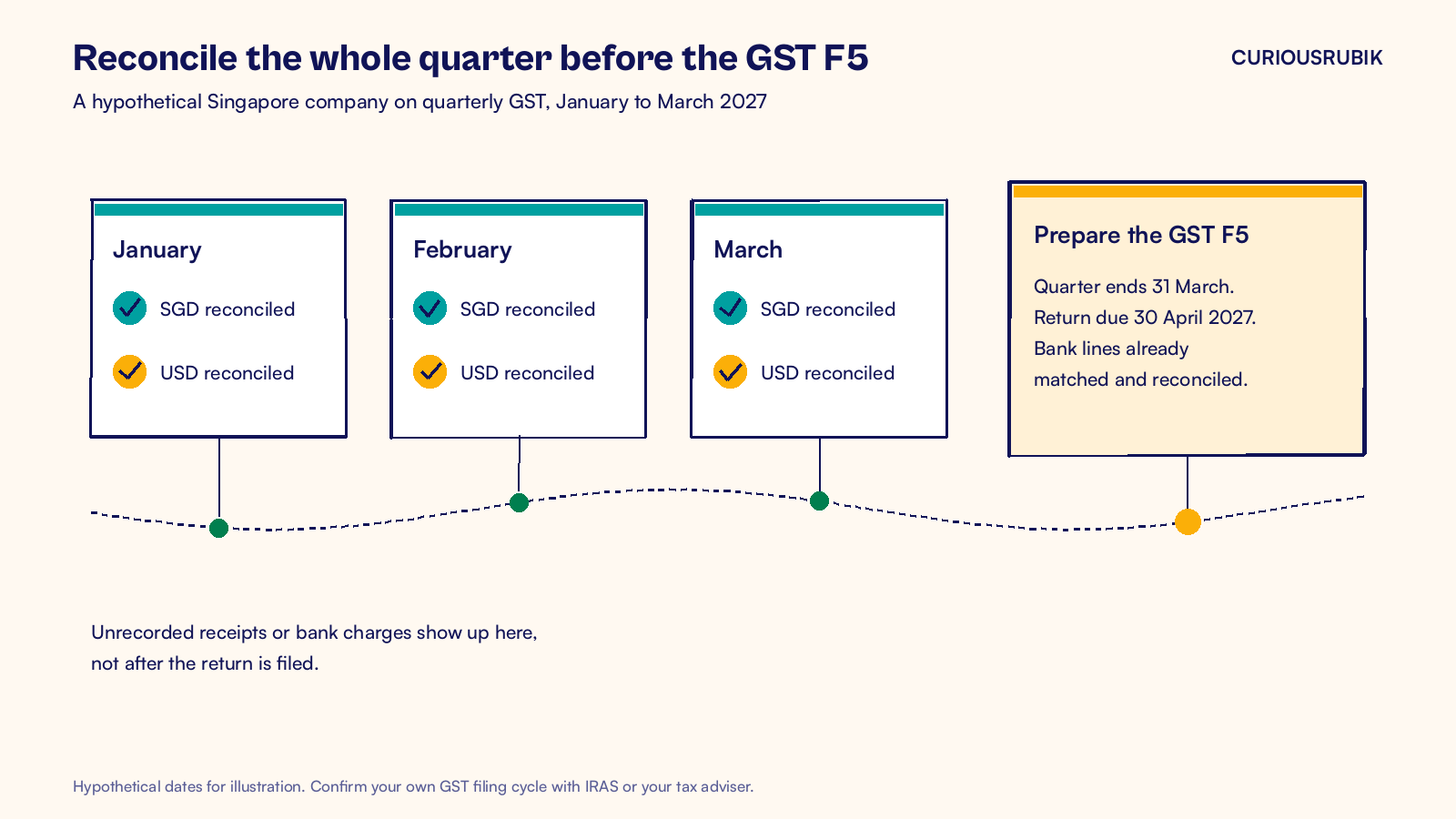
- Reconcile all three months of a GST quarter before the F5 is prepared.
What is NetSuite bank reconciliation in Singapore?
Bank reconciliation is the monthly check that every line on your bank statement matches a transaction in NetSuite, and that the two closing balances agree. In NetSuite this happens on two pages. Match Bank Data pairs imported bank lines with NetSuite transactions. Reconcile Account Statement then confirms the statement balance and closes the statement for that account.
Singapore adds a few local habits. Receipts come in by PayNow, FAST and GIRO, each with its own reference style. Many companies also hold a USD account for regional customers and suppliers. Our guide on how bank matching differs from statement reconciliation explains why these are two separate jobs.
What should you set up before the first month?
Set these up once, before the first month you reconcile.
- One NetSuite account per bank account. An SGD current account and a USD account at the same bank are two NetSuite bank accounts, each in its own currency.
- A way in for bank data. The Bank Feeds SuiteApp can connect to supported banks in Singapore. If your bank is not on the list, download a statement file. NetSuite reads CAMT.053 and CSV by default, and the Bank Statement Parsers SuiteApp adds MT940.
- The right account setting. New accounts use Match Bank Data and Reconcile Account Statement automatically. On older accounts, check the box "Use Match Bank Data and Reconcile Account Statement Pages".
- Reconciliation rules. Open Transactions > Bank > Reconciliation Rules. Keep the system rules on, then add user rules for your own patterns. A common one matches on amount plus the invoice number a customer typed into a PayNow reference.
- Roles. Give the preparer the Reconcile permission. Keep rule changes with a finance lead.
How to reconcile a Singapore bank account in NetSuite, step by step
Work through each bank account in the same order every month.
- Bring in the month's bank lines. Bank Feeds imports on a schedule. For files, go to Transactions > Bank > Banking Import History > Upload File and choose the format profile for that account. A CSV file can hold only one account, in that account's currency.
- Apply customer receipts first. Open Automated Cash Application and submit the suggested payments. PayNow and FAST receipts that quote an invoice number are matched to that invoice for you to submit. Our NetSuite cash application in Singapore guide covers short payments and discounts.
- Run the reconciliation rules. On Match Bank Data (Transactions > Bank > Bank Matching and Reconciliation), NetSuite shows bank lines on one side and NetSuite transactions on the other. Rules have already matched what they can.
- Clear the leftovers. Match outgoing GIRO and FAST supplier payments to their bill payments. Record any missing bank charge or interest line in NetSuite, then match it. Exclude true duplicates only after checking the bank statement.
- Check the USD account in USD. Reconcile the USD account against the USD statement. Leave the SGD value of the balance to the month end currency revaluation, which runs after the reconciliation.
- Reconcile the statement. Go to Transactions > Bank > Reconcile Account Statement. Enter the statement end date and closing balance, review the matched items and reconcile when the difference is zero.
- Keep the evidence. Save the Reconciliation Summary report with the bank statement for the month.
In NetSuite 2026.2, matches and cleared lines are submitted for you from Match Bank Data. The Review tab also shows whether a person or the system made each match. That helps when an auditor asks who cleared a line.
Finish all three months of a quarter before anyone starts the GST F5. Unrecorded receipts or bank charges then show up early, not after filing. Our NetSuite GST F5 return guide picks up from there.
If your group has a US subsidiary that sells subscriptions, our NetSuite revenue recognition process guide shows how the revenue steps follow the same close.
Frequently asked questions
Can NetSuite connect directly to Singapore banks?
Yes, for supported banks. The Bank Feeds SuiteApp lists Singapore among the countries it connects to, and it imports lines on a schedule. If your bank is not supported, download a CAMT.053, MT940 or CSV statement from online banking and upload it. The matching and reconciliation pages then work the same way.
How often should we import bank data?
Daily is best for busy SGD accounts, because receipts clear sooner and the month end pile stays small. Weekly can work for a quiet USD account. Bank Feeds runs on its own schedule. You can also start a manual import, but NetSuite allows that only once every 60 minutes for the same format profile.
What do we do with a bank charge on an overseas transfer?
Record the charge in NetSuite against your bank charges expense account, in the bank account's currency. Then match it to the bank line on Match Bank Data. If a customer paid short because of the charge, handle the gap during cash application instead, so the invoice closes at the right amount.
Who should own NetSuite bank reconciliation in a small Singapore team?
Give each bank account one preparer and one reviewer. The preparer imports, matches and reconciles. A finance manager reviews the summary report and signs off before the period closes. Rule changes stay with the reviewer, so a quick fix for one month does not quietly match the wrong lines later.
At CuriousRubik, we set up bank data, matching rules and month end routines for Singapore finance teams. Our NetSuite finance and payments integration team can connect your banks and tune the rules with you. See how we support NetSuite customers in Singapore.
Related reading
NetSuite Cash Application for Singapore Receivables
How PayNow, FAST and GIRO receipts are matched to invoices and applied.
Bank Matching and Statement Reconciliation in NetSuite
Why matching lines and reconciling the statement are two separate checks.
NetSuite GST F5 Return: How to Prepare and Review
How to agree each F5 box to tax codes and the ledger once the bank is reconciled.