For US controllers and staff accountants who want most bank lines matched before anyone opens the reconciliation page.
Last reviewed: 11 November 2026. Product details reflect this review date. Availability and behavior can vary by account, role and release.
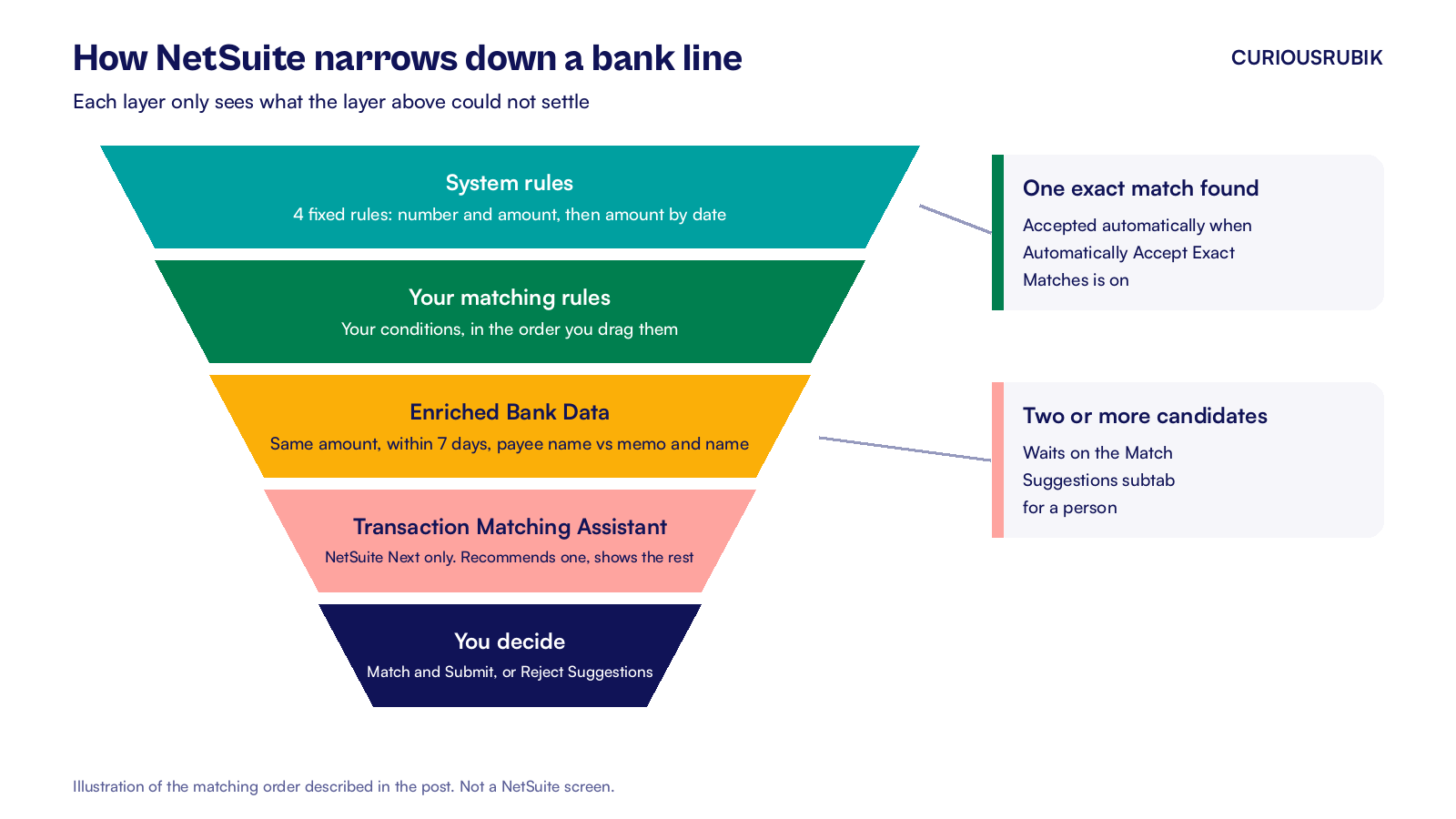
NetSuite Intelligent Transaction Matching pairs each imported bank line with the payment, deposit or journal already in your ledger. It runs fixed system rules and your own matching rules every time bank data arrives. Exact matches can be accepted for you. Lines with more than one possible match wait on the Match Suggestions subtab for a person to decide.
- Matching happens on import, so a daily bank feed means daily matching with no extra clicks.
- The bank's transaction ID is compared with the NetSuite Check Number field, so clean check and reference numbers do most of the work.
- Your own rules cover the patterns the system rules miss, such as checks that clear weeks later.
- Anything ambiguous is left for review. AI recommendations are never submitted on their own.
What is NetSuite Intelligent Transaction Matching?
Intelligent Transaction Matching is the NetSuite banking feature that compares imported bank or credit card lines with account transactions and links the ones that belong together. It runs when bank data is imported and when you run reconciliation rules by hand. A matched pair then moves on to the Reconcile Account Statement page, where you confirm the period balance.
Matching and reconciling are two separate jobs. Matching ties one bank line to one bill payment or deposit. Reconciling confirms the statement balance agrees with the ledger for the month. Our article on separating bank matching from statement reconciliation covers why that split matters for your close.
The field that drives most matches is the NetSuite Check Number. It means a different field on each record:
| NetSuite record | Field compared with the bank transaction ID |
|---|---|
| Bill payment, check, customer payment, cash sale | Check # |
| Deposit | Deposit # |
| Transfer | Transfer # |
| Journal entry | Entry No. |
| Credit card charge or refund | Reference # |
This table does most of the work for US teams that write checks or send ACH batches with a reference.
Which rules does NetSuite run on each bank line?
NetSuite runs two kinds of rules on every new bank line. You find both at Transactions > Bank > Reconciliation Rules.
System rules
Four system rules ship with NetSuite. You can't edit or reorder them, but an administrator can inactivate one. In priority order they are:
- Match on transaction number and amount, with the NetSuite date on or before the bank date.
- Match on amount and transaction number without prefixes and leading zeros, so 000123 or N123 still matches 123.
- Match on amount when the NetSuite date is the bank date or up to 2 days before.
- Match on amount when the NetSuite date is the bank date or up to 89 days before.
The first two rules can also match groups. If one ACH batch shows as a single bank line, NetSuite can match it to several payments that share the same number when the totals agree.
User rules
User rules sit under User Rules on the same page, in two groups. Matching rules are your own conditions, run in the order you drag them into. Auto-create rules create and match a transaction when a bank line fits, which suits recurring bank fees and interest. You build an auto-create rule from a one to one match on the Match Bank Data page, and each one applies to a single account.
When a rule finds two answers
A rule that finds two equally good candidates does not guess. Say a USD 70 deposit arrives and two open USD 70 deposits sit in the ledger. NetSuite leaves the line for you.
Two things can narrow it down first. Enriched Bank Data, on by default, compares the bank line's payee with each candidate's memo and name, within 7 days of the bank date. In accounts eligible for NetSuite Next, the Transaction Matching Assistant then recommends the most likely candidate and shows the others beside it. You still click Match and Submit, or Reject Suggestions.
How do you set up matching rules for a US bank account?
Look at one month of unmatched lines before you write a rule, because the patterns tell you what to build.
- Go to Transactions > Bank > Reconciliation Rules and click New Rule under User Rules.
- Name the rule after the pattern it fixes, for example "Checks clearing within 45 days."
- On the Accounts subtab, tick only the bank accounts the pattern applies to.
- On the Conditions subtab, set the first Transaction Type to All Imported. NetSuite fills in All NetSuite for the second.
- Build the first condition: Primary Field Transaction ID, Operator Equals (Ignore Prefix), Compare Field Check Number.
- Add a second condition: Primary Field Date, Operator Within x Previous Days of, Value 45. NetSuite picks the matching date field for you.
- Save, then drag the rule into place among your other matching rules.
- Run the rules for the account and review the matches.
The first two system rules already cover late checks when their numbers agree. This custom rule adds a narrower date window after the system rules run. Review unresolved candidates rather than adding another amount rule.
Two other patterns are worth a rule or a process change. Wires that quote a journal entry match on Entry No., so ask treasury to put the entry number in the wire reference. Card processor deposits that arrive net of fees will not match the gross deposit. Record the fee on the deposit or as its own charge so the amounts agree.
Should exact matches be accepted automatically?
The Automatically Accept Exact Matches preference is on by default. When the user who imports the bank data or runs the rules has the Reconcile permission at Create level or higher, eligible matches are submitted for you. Those rows show System in the Submitted By column on the Reconcile Account Statement page.
We suggest leaving it on and checking a sample. Each week, open ten rows submitted by System and confirm the payee and amount.
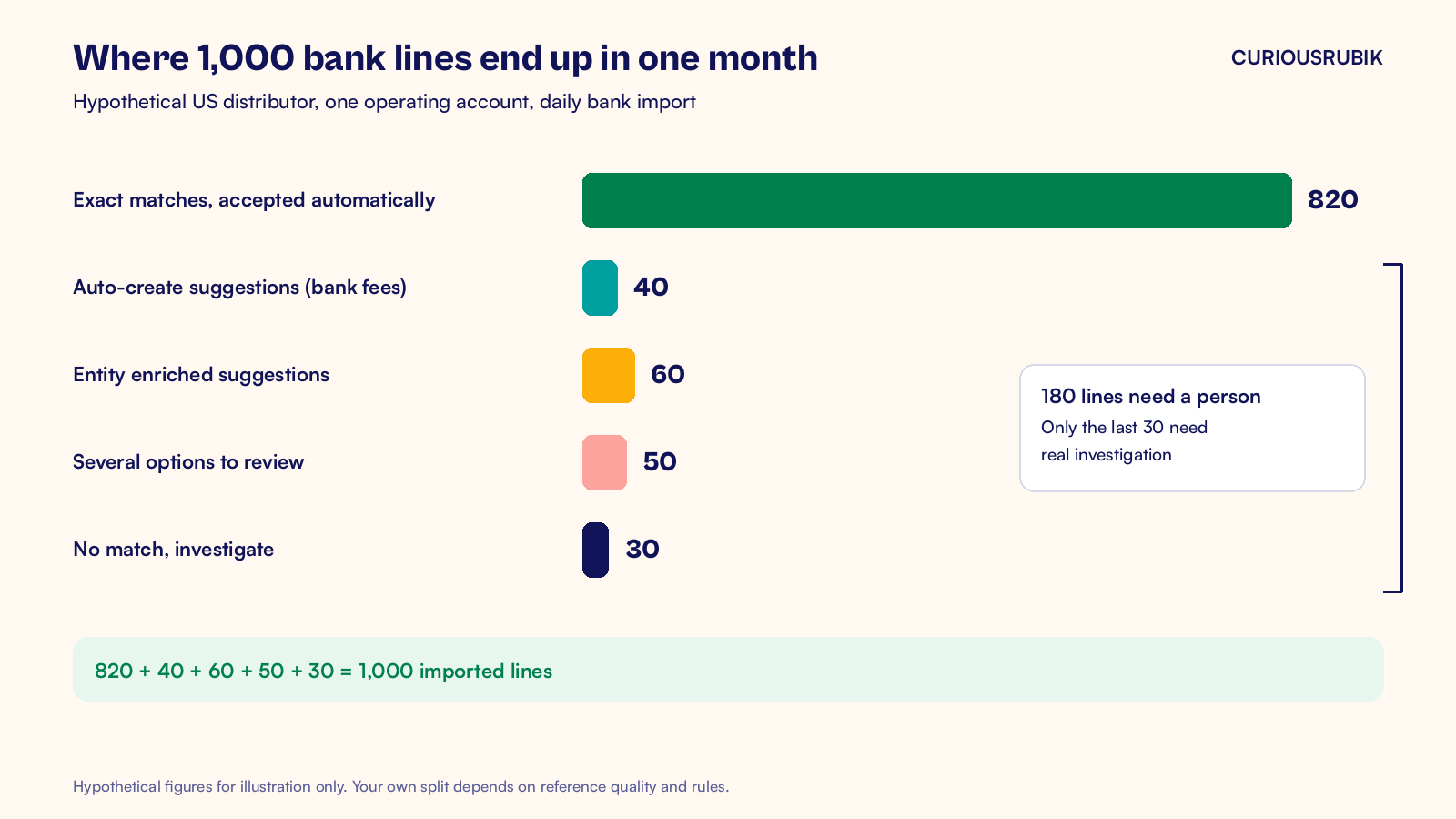
The chart above shows a hypothetical month at a US distributor with 1,000 imported bank lines. Exact matches cover 820 lines and are accepted automatically. That leaves 40 auto-create suggestions for bank fees, 60 entity enriched suggestions, 50 lines with several options and 30 with no match at all. Only those last 180 lines need a person, and only 30 need real investigation.
What to check this week
- Check numbers: confirm bill payments carry the check or ACH trace number your bank reports. If you pay vendors from NetSuite, our guide to Electronic Bank Payments setup covers the payment file side.
- Inactive rules: open Reconciliation Rules and confirm no system rule was switched off by mistake.
- Open matches: filter the Match Suggestions subtab for lines older than 30 days and clear them before month end.
- Permissions: confirm the staff accountant role has the Reconcile permission, so exact matches submit on import.
- NetSuite Next: ask your administrator whether the account is eligible, then turn on the Transaction Matching Assistant in Enable Features, Accounting subtab.
Matched bank lines feed the cash step of your NetSuite record to report process, and customer receipts can go one step further with automated cash application.
At CuriousRubik, we see bank matching as one of the fastest wins in an existing account. Our NetSuite optimization team can review your unmatched lines, write the rules and set a weekly sample check. We work with finance teams across the United States.
Related reading
Bank Matching and Statement Reconciliation in NetSuite
Why matching lines and reconciling the statement are separate jobs, and who should own each.
NetSuite Record to Report Process for US Finance Teams
The six stage close flow that bank matching feeds, with an owner and a control for each stage.
NetSuite Automated Cash Application and Payment Match Suggestions
How customer receipts are matched to open invoices so collections post without manual keying.