For US controllers and AP leads who pay overseas suppliers and want each payment to match the bank, bill and ledger.
Last reviewed: 31 October 2026. Product details reflect this review date. Availability and behavior can vary by account, role and release.
NetSuite international payment processing lets a US company enter a bill in the supplier's currency and pay it through a bank file from a USD account. The bill keeps the rate on the bill date, and you enter the bank's rate on the payment. NetSuite posts the gap as a realized gain or loss automatically.
- Set the currency on the vendor record before the first bill, because a used currency can't be removed later.
- Enter the bank's quoted rate on the payment so the USD amount matches the bank debit.
- Expect a realized gain or loss on almost every foreign currency payment. It is normal, not an error.
- Record wire fees as their own bank line, not as part of the supplier payment.
What is NetSuite international payment processing?
International payment processing is the work of paying a supplier in another country, usually in that supplier's currency, and keeping the books right in US dollars. It covers the supplier's currency and bank details, the bill, the payment, the file you send to your bank, the approval before it goes and the exchange difference afterwards.
In NetSuite this runs on three pieces you may already have. The Multiple Currencies feature lets a vendor bill carry euros, pounds or any other currency. The Electronic Bank Payments SuiteApp builds the payment file your bank accepts. The general ledger posts the realized gain or loss when the payment is applied to the bill.
Many US companies start by keying international wires straight into the bank portal and recording them in NetSuite later. That works for a handful of payments a year. Once overseas suppliers become regular, the bank portal and NetSuite drift apart, and someone spends month end matching them by hand. Running the payment from NetSuite keeps one record of what was paid, at what rate and who approved it.
A hypothetical Ohio distributor pays a German supplier in euros
To make this concrete, take a hypothetical Ohio distributor. Its NetSuite base currency is USD. It buys pumps from a German manufacturer that invoices in euros on net 30 terms. In September, the distributor receives two bills.
| Bill | Bill date | Amount | NetSuite rate (USD per EUR) | Value in USD |
|---|---|---|---|---|
| Bill 1 | 2 September | EUR 48,000.00 | 1.0800 | USD 51,840.00 |
| Bill 2 | 18 September | EUR 12,000.00 | 1.0950 | USD 13,140.00 |
| Total | EUR 60,000.00 | USD 64,980.00 |
On 2 October, the AP lead pays both bills in one international wire. Bill 2 is not due until 18 October, but one wire saves a second bank fee. The bank quotes 1.1000 USD per EUR for the transfer and charges a USD 45.00 outgoing wire fee. NetSuite's own daily rate for that date is 1.0985.
The rest of this post follows these two bills from setup to the bank statement. The numbers are invented for the example, but they add up, so you can test the same steps in your sandbox.
How do you set up a foreign currency supplier in NetSuite?
Setup happens once per supplier. Most of it sits on the vendor record and the bank details record that the Electronic Bank Payments SuiteApp adds.
Currencies and the vendor record
- Confirm the Multiple Currencies feature is on at Setup > Company > Enable Features, on the Company subtab. If you also turn on Currency Exchange Rate Integration, NetSuite updates exchange rates once a day.
- Check that EUR exists at Lists > Accounting > Currencies, and that USD is your base currency.
- Open the vendor record. On the Financial subtab, set Primary Currency to EUR. NetSuite adds the primary currency to the Currencies subtab when you save.
- Add any other currency the supplier might bill in on the Currencies subtab. You can add as many as you need, but you can't remove one once a transaction uses it.
Bank details and terms
- Add the supplier's bank details as an entity bank details record: account holder name, IBAN, SWIFT or BIC code, bank name and bank address. Mark the record primary.
- Ask the supplier to confirm those details in writing on their letterhead, and have someone other than the person who entered them check the IBAN against that letter.
- Set the vendor's terms (net 30 here) so due dates on the bills drive the payment run.
Steps 5 and 6 matter most. A wrong IBAN is one of the hardest AP errors to undo, because an international wire can take days to trace and recover. Make bank detail changes a controlled request, with System Notes showing who changed what and when.
How does NetSuite record the bill and the payment at two rates?
When AP enters Bill 1, they pick the vendor, the currency defaults to EUR and the Exchange Rate field fills from NetSuite's rate for 2 September: 1.0800. The bill posts EUR 48,000.00 to accounts payable, which is USD 51,840.00 in the ledger. Bill 2 posts the same way at 1.0950.
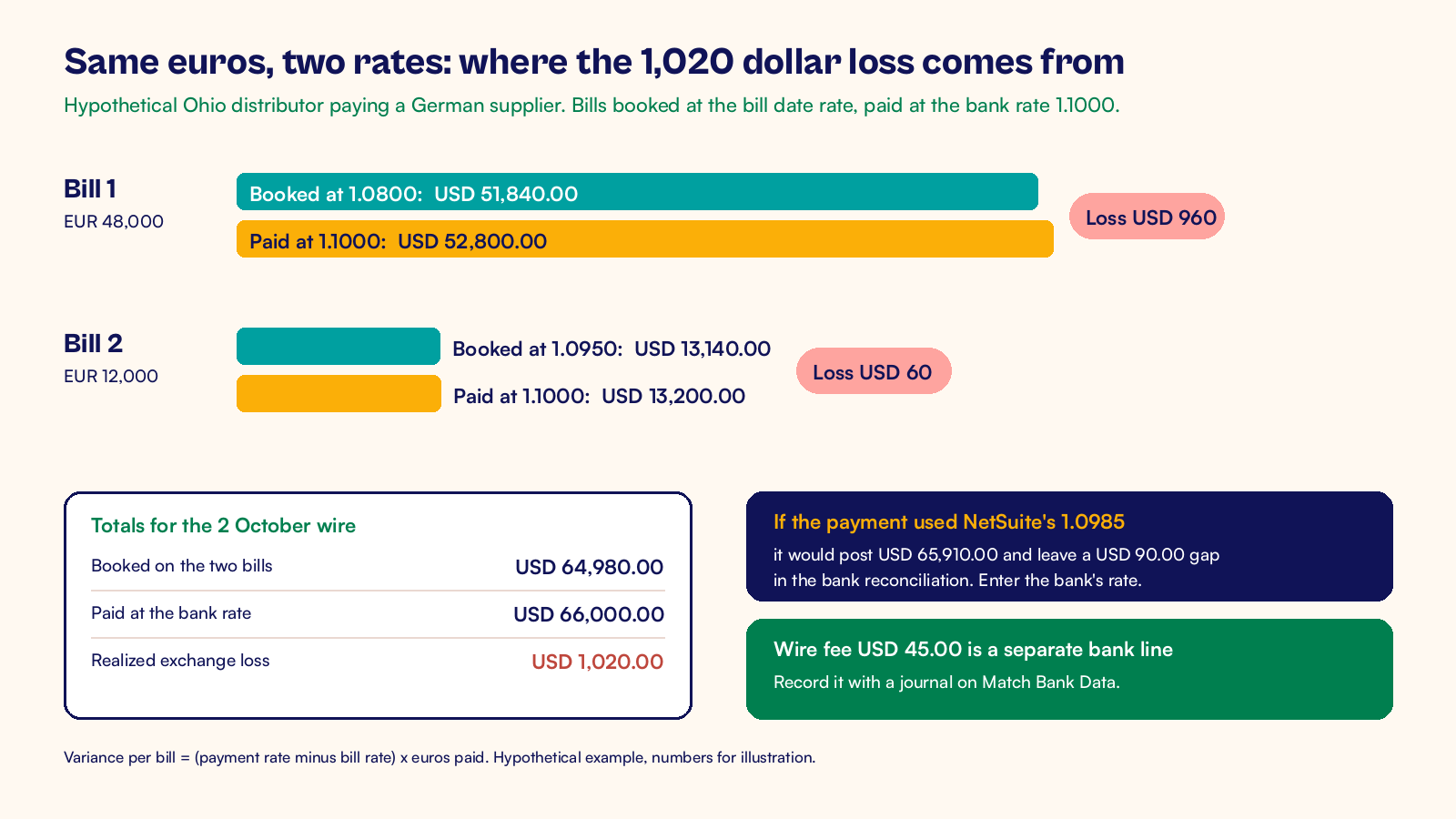
On 2 October, the payment goes out at the bank's rate of 1.1000. EUR 60,000.00 now costs USD 66,000.00. The ledger carried the two bills at USD 64,980.00. The USD 1,020.00 gap is a realized exchange loss: the dollar weakened between the bill dates and the payment date, so the same euros cost more.
NetSuite calculates this per bill with a simple formula: the payment rate minus the bill rate, multiplied by the amount paid in euros.
| Bill | Bill rate | Payment rate | Euros paid | Realized gain or loss |
|---|---|---|---|---|
| Bill 1 | 1.0800 | 1.1000 | EUR 48,000.00 | USD 960.00 loss |
| Bill 2 | 1.0950 | 1.1000 | EUR 12,000.00 | USD 60.00 loss |
| Total | EUR 60,000.00 | USD 1,020.00 loss |
The loss posts to the Realized Gain/Loss account by default. If your company uses Foreign Currency Variance Mapping, you can send these amounts to other accounts, for example by subsidiary or by type of transaction. The Realized Exchange Rate Gains and Losses report then lists each bill, the payment, both rates and the result, which gives your auditor one place to look.
Bills that are still open at month end are a separate matter. NetSuite revalues open foreign currency balances when you run the period end revaluation, and that unrealized amount is not the same as the realized amount above. Our post on foreign currency settlement in NetSuite explains how the two fit together when bills are paid across a period end.
How do the payment batch, approval and bank file work?
With Electronic Bank Payments, AP doesn't key the wire into the bank portal. NetSuite builds a payment file that the bank imports. For international payments, that file uses a format with the multi currency option turned on, attached to a company bank account in your base currency. Oracle's documentation notes that international transfer formats need the advanced Electronic Bank Payments license, so confirm which license you hold before you design the process.
Run the payment batch
Here is the run for our two bills:
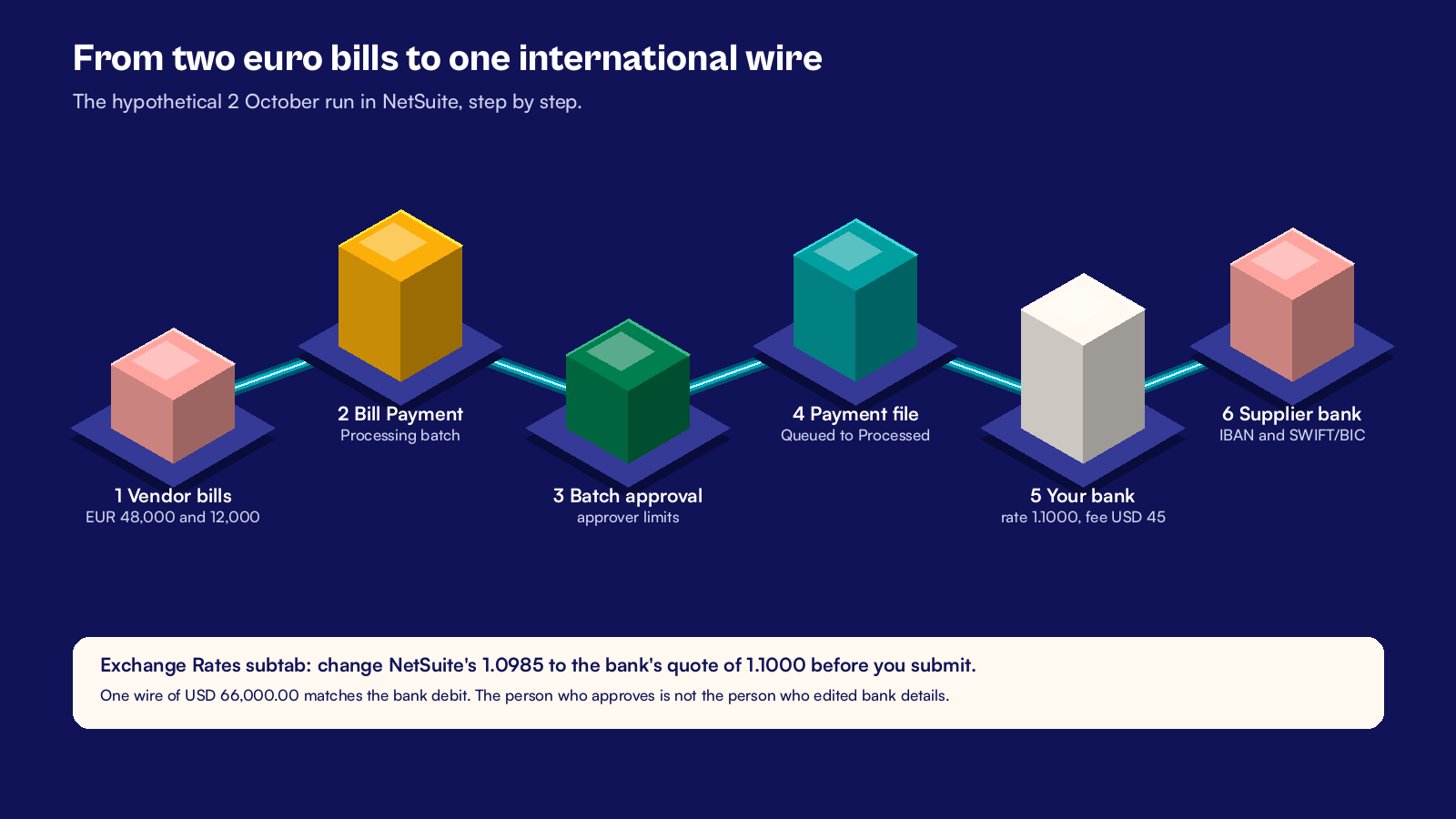
- Go to Payments > Payment Processing > Bill Payment Processing.
- Select the USD operating account in Bank Account and the right A/P Account. The open bills for that account appear on the Select Transactions subtab.
- Set Date to be processed to 2 October and pick the October posting period.
- Filter by the German vendor and check Bill 1 and Bill 2. Keep Aggregate by Payee checked so both bills go out as one wire.
- Open the Exchange Rates subtab and change the EUR rate from NetSuite's 1.0985 to the bank's quote of 1.1000.
- Click Submit. NetSuite opens the record on the Payment File Administration page.
- Click Refresh until File Processed changes from Queued to Processed, then download the file from the File Reference link and upload it to the bank.
Step 5 is the one teams miss. If the payment uses NetSuite's 1.0985, it posts USD 65,910.00, while the bank takes USD 66,000.00. That leaves a USD 90.00 difference sitting in the bank reconciliation, and someone has to chase it at month end. Entering the bank's rate makes the payment match the bank debit to the cent.
Approve before the file leaves
Approval belongs before the file reaches the bank. Electronic Bank Payments has its own approval routing for payment batches, with approvers and limits set on the company bank record.
Some accounts already use the Vendor Payments approval routing preference in Accounting Preferences. In that case manual Bill Payment Processing is blocked, so use EFT Payment Batch Approval Routing for these runs instead. Either way, the person who approves the batch should not be the person who edited the supplier's bank details.
Where do the wire fee and the rate difference go?
The bank statement for 2 October shows two debits: USD 66,000.00 for the wire and USD 45.00 for the fee. Keep them apart in NetSuite too. The supplier payment should equal the bill amounts in euros, and the fee is your cost of using the bank, not part of what you owe the supplier.
The cleanest place to record the fee is the bank reconciliation. On the Match Bank Data page, select the imported fee line, add a journal entry that debits bank charges and credits the operating account, then match the two. If the same fee appears on every international wire, an auto create rule can create and match that journal for you on future statements.
After that, the October bank reconciliation has three clean lines for this payment:
| Bank statement line | NetSuite record | Amount |
|---|---|---|
| International wire to German supplier | Bill payment for Bill 1 and Bill 2 at 1.1000 | USD 66,000.00 |
| Outgoing wire fee | Journal to bank charges | USD 45.00 |
| Exchange difference | Realized loss posted with the payment | USD 1,020.00 (no bank line) |
The realized loss has no line of its own on the bank statement. It sits inside the USD 66,000.00, which is why the bank rate on the payment matters so much. Our payment run checklist covers the checks to run on any batch before the file leaves NetSuite.
What does an international payments setup project cover?
At CuriousRubik, we see international payments set up in one of two ways. Some teams add them during a new implementation. Others fix a live account where wires are still keyed into the bank portal.
The work is similar either way. It touches finance, AP, treasury and the bank, so it helps to agree the scope before anyone builds a format.
| Work item | What gets decided or built | Usual owner |
|---|---|---|
| Currencies and rates | Which currencies, which rate source, who updates rates on days the feed misses | Controller |
| Vendor and bank data | Primary currency, bank details fields, change control and callback check | AP lead with an independent reviewer |
| Payment format | Bank's international file format, multi currency option, field validation for IBAN and BIC | NetSuite administrator with the bank |
| Approval | Batch approval routing, approver limits, separation from bank detail edits | Controller and CFO |
| Accounting | Realized gain or loss accounts, variance mapping, bank fee account and auto create rules | Controller |
| Testing | A test file accepted by the bank, a small live payment, a full month end reconciliation | AP lead and the bank's implementation contact |
Your bank's onboarding team usually needs a test file before it accepts live ones, and that review often takes longer than the NetSuite setup. Start that conversation early. Our post on Electronic Bank Payments setup requirements lists what to collect from the bank first.
The next step is small. Pick your three most frequent foreign currency suppliers and check their vendor records and bank details against the list above. Then run one payment through Bill Payment Processing in your sandbox, with the bank's rate on the Exchange Rates subtab. If the sandbox payment, the realized loss and a test bank line all reconcile, you are ready to talk to the bank about a live file.
If you are tightening the purchase side as well, our order collaboration checklist covers the steps from purchase order to matched bill.
CuriousRubik's NetSuite finance and payments integration team can set up the vendor data, payment formats, approvals and reconciliation rules for your international suppliers and test them with your bank. You can also read how we work with NetSuite customers in the United States.
Related reading
NetSuite Electronic Bank Payments Implementation Requirements
What to gather from your bank and your team before you build payment files.
NetSuite Foreign Currency Customer and Vendor Settlement
How NetSuite settles foreign currency balances and where revaluation fits.
A NetSuite Payment Run Checklist Before Bank Submission
The checks to run on every payment batch before the file goes to the bank.