Last reviewed: 10 October 2026. Product details reflect this review date. Availability and behavior can vary by account, role and release.
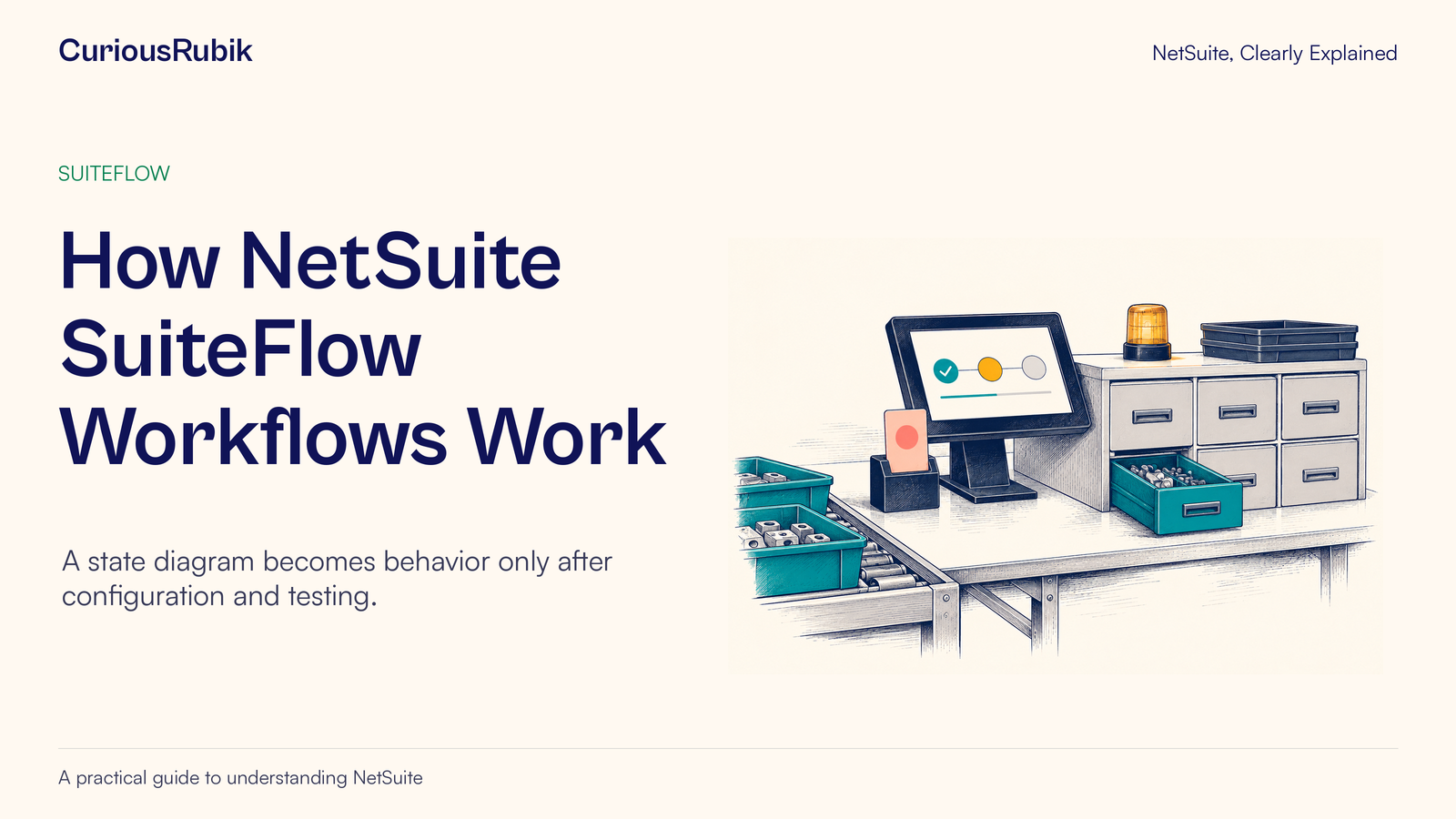
Editorial ink illustration: A workbench shows an allowed step and a separate decision still waiting.
A record stays in review, an email arrives twice, or a button appears for one user but not another. These problems can look unrelated until you describe what the workflow was supposed to do, when it was supposed to do it, and what evidence would show that it happened.
SuiteFlow supports custom business processes on standard and custom NetSuite records. To understand one of those processes, begin with four ideas: states describe stages, actions do work, conditions decide whether behavior is allowed, and triggers determine when behavior is considered. Transitions connect the stages.
This lesson helps a process owner discuss those ideas with an administrator and build useful tests. It does not assume that your account already contains the illustrative approval process. SuiteFlow must be enabled, the configuring role needs the relevant Workflow permission, and access to the underlying record matters too.
Start with a record and a sentence
“Automate approvals” is too broad to test. Name the record and the handoff. For this lesson, imagine a fictional custom Service Readiness record at Birchwater Services. A coordinator prepares the details, a reviewer checks them, and the team marks the record complete after review.
The agreed business sentence is: “A service request can move to review only when its customer reference is present, and only an authorized reviewer can complete the review.” These are invented company requirements, not built-in rules for all NetSuite accounts.
Keep the first design small. The team is not yet sending customer emails, creating orders, or scheduling technicians. Those actions would introduce additional records, permissions, and consequences. A useful first diagram explains this one record's journey.
Also ask what completion means. Does it mean the review happened, the service was delivered, or the customer was invoiced? In this example it means only that the readiness review is complete. Giving a state a precise meaning prevents later teams from treating it as evidence for work that has not happened.
Give each state a business meaning
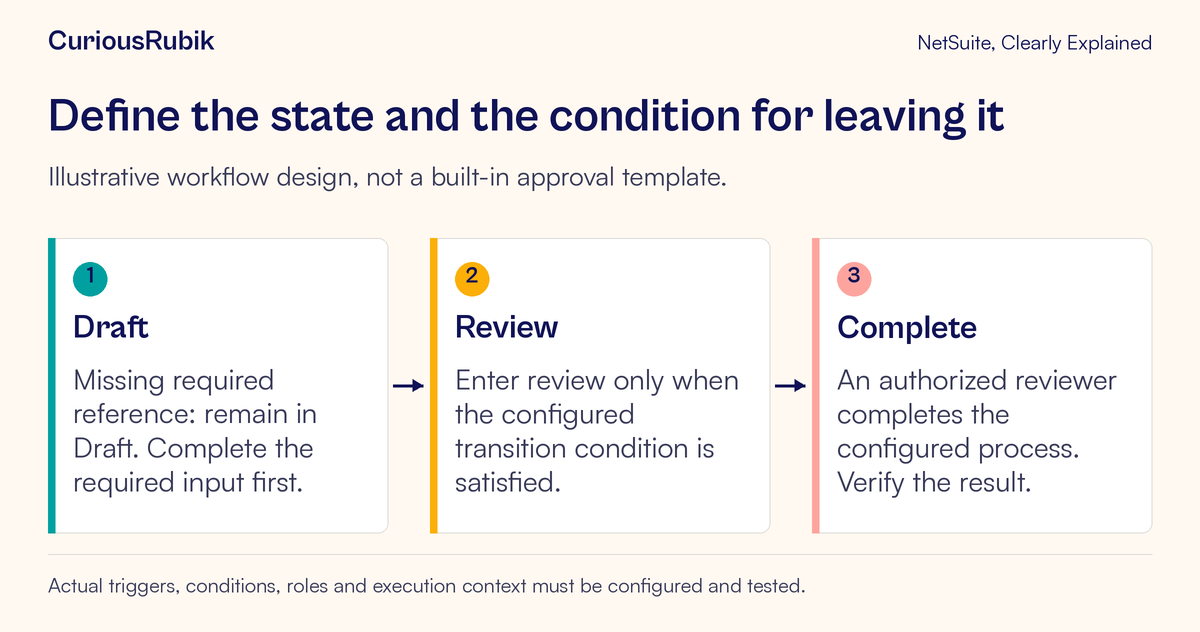
Birchwater chooses three conceptual states:
- Draft: the coordinator is preparing information
- Review: the record is ready for the designated review
- Complete: an authorized reviewer has finished the agreed check
A state is a stage within a workflow instance. A record field labeled “Status” may also describe business progress, but you should not assume that the field value and workflow state are automatically identical. If the design needs them to agree, the administrator must configure and test that relationship.
The same distinction matters during troubleshooting. A screen may show a custom status label while the workflow instance is waiting somewhere else. Ask which source of evidence the team is using: a record field, the workflow's current state, a button, or an execution log.
For the first design, write a one-sentence entry condition and exit expectation for every state. If no one can explain when a record should leave Review, drawing a connecting arrow will not resolve the missing business rule.
Separate actions from transitions
An action changes something or performs work within a state. Depending on the configuration and supported action, that could include setting a field, presenting a button, or sending an email. A transition moves the workflow instance to another state.
In Birchwater's example, making a review control available is different from moving the record into Review. Marking a business field complete is different from establishing that the workflow has entered its Complete state. List each intended result separately so the test can catch a partial outcome.
Suppose the design includes an internal notification when Review begins. The notification and the state change need separate acceptance checks. The workflow could reach Review while the notification is missing. An email could also be sent under an incorrect condition. “The workflow ran” is too imprecise to describe either result.
For the initial practice exercise, omit unnecessary messages or route them only through approved testing arrangements. A demonstration should not generate real customer correspondence or production approval requests simply to prove that an action can execute.
Conditions express the rule; triggers supply the opportunity
A condition answers a yes-or-no question. Does the reference contain an acceptable value? Is the acting user permitted to perform this review? Does the record meet the scope for this workflow?
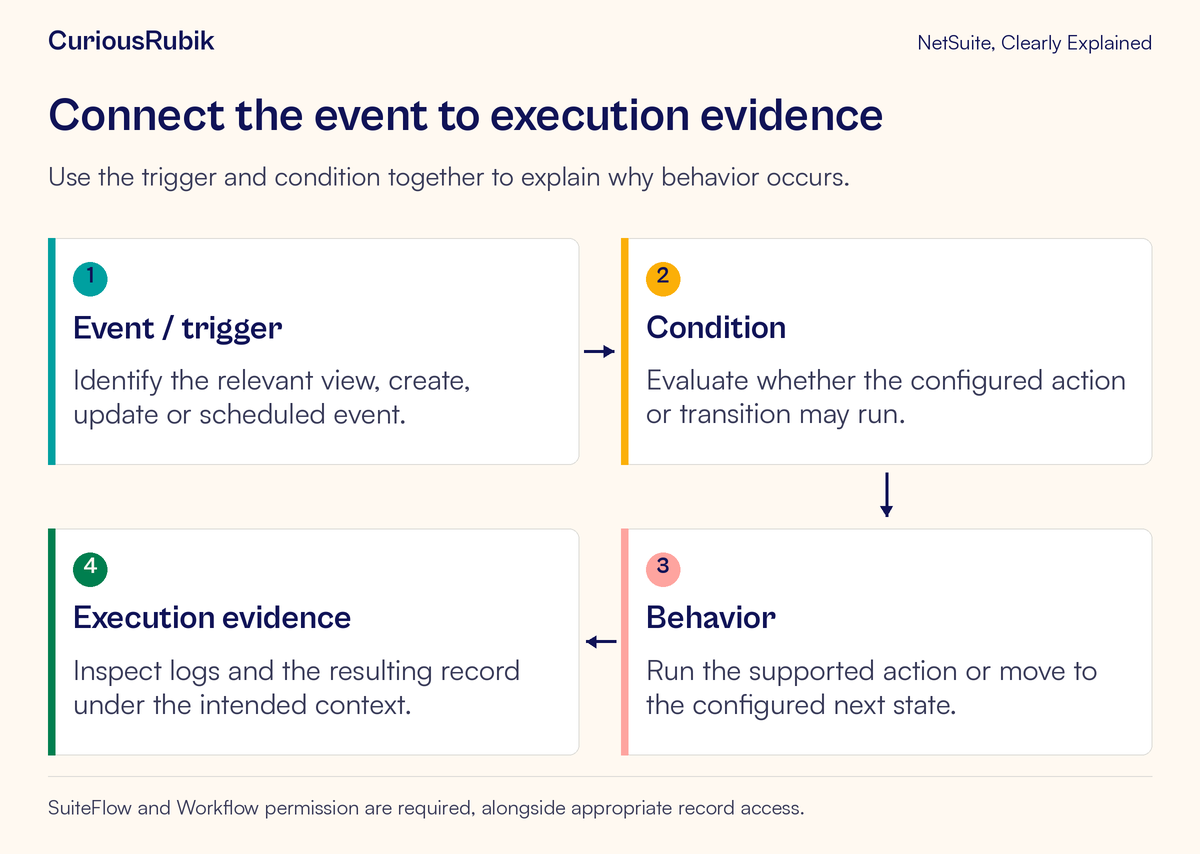
A trigger supplies the event or timing at which the configured behavior is evaluated. SuiteFlow can respond to record events such as viewing, creating, or updating, and workflows can also be scheduled. Specific action and transition options depend on the workflow design and supported trigger.
Both parts must be right. A rule that looks correct on paper may be evaluated before the expected value exists. A valid condition may never be considered if the relevant event does not occur in the chosen execution context.
Use an everyday analogy: a locked gate can have the correct access rule, but it only opens when someone requests entry. In the workflow, identify both the access rule and the event that asks it to run. Avoid adding several triggers as a guess when one carefully chosen trigger would express the process.
Also define how the workflow starts. Initiation determines which records receive an instance and under what circumstances. Testing an action inside a state cannot explain a record on which the workflow never initiated.
Write the expected journey before configuration
Birchwater creates four test cards. Each records the environment, role, record identity, starting state, input values, action, and expected result.
- Complete reference: a coordinator prepares a valid record and requests review; the record should reach the configured Review stage.
- Missing reference: the same task is attempted without the required reference; the record should remain in Draft with the agreed explanation or correction path.
- Authorized review: a reviewer completes the agreed check; the record should reach Complete and show the intended business outcome.
- Unauthorized completion attempt: a role without review authority should not be able to complete the review through the tested route.
These are expected outcomes for a design, not reported results from a live account. The administrator must map them to supported controls, actions, transitions, and permissions. The test owner then compares observations with the agreed expectations.
Keep the required reference realistic. A test that enters a single space may reveal that “not empty” is weaker than the business intends. Decide what constitutes an acceptable reference and how the configured process will enforce or review that definition.
Test what happens on the second visit
A process can work once and still misbehave when someone returns to the record. After the first successful path, reopen it, make an allowed edit, save, and inspect the outcome. Does the record stay in the appropriate stage? Does an action run again? Does a new workflow instance begin?
The correct behavior depends on the process. Birchwater might require a fresh review when a critical service detail changes, while allowing a harmless internal note without reopening the review. Make that distinction explicit rather than accepting whichever behavior happens during the first test.
Test a corrected exception too. Start with the missing-reference case, enter a valid reference, and repeat the authorized submission step. The person needs a usable recovery path. Blocking incomplete information is only half the requirement if the record cannot move forward after correction.
If imports or integrations create the relevant records, include those contexts in the agreed test scope. A form interaction and a background update do not necessarily produce identical workflow behavior. Record which routes were tested and which remain unverified.
Read the execution evidence in order
When something fails, resist changing the visible rule immediately. Start with the exact record and test time. Confirm that the intended workflow instance exists, identify its current or observed states, and review the relevant execution evidence available to the administrator.
A useful investigation asks:
- Did this record qualify for initiation?
- Was the expected instance active at the relevant time?
- Did the relevant event or trigger occur in this context?
- Were the action or transition conditions satisfied then?
- Did the action execute, fail, or get skipped?
- Did another process change the result afterward?
SuiteFlow execution logs support this investigation. Their usefulness depends on the available logging and record context, so capture evidence while the test is reproducible. Pair the workflow evidence with NetSuite System Notes interpretation when you need to understand an actual field change. Neither a diagram nor a field value alone explains the full sequence.
Troubleshoot common symptoms without broad changes
If nothing happens, check initiation and current state before inspecting the final action. A perfectly configured Review action cannot run on an instance that remains in Draft.
If an action appears twice, compare timestamps, workflow instances, re-entry behavior, and execution contexts. Determine whether one action ran twice, two workflows performed similar work, or someone repeated the business request. Disabling the workflow may interrupt valid work without identifying the cause.
If users see different controls, compare their roles, form context, and the conditions that make the control available. Test with the intended role rather than using an administrator's experience as proof for everyone.
If a field seems empty at the decisive moment, review its source and storage behavior. The lesson on custom fields at the body and line level helps explain why a workflow must read the right fact at the right level. For slow record interactions, use page, network, and customization evidence to separate workflow suspicion from a measured cause.
Keep a compact workflow checklist
- One base record and one business outcome are named
- Every state has a clear meaning and exit expectation
- Actions and transitions have separate acceptance checks
- Conditions express approved business rules
- Trigger timing and relevant contexts are understood
- Ordinary, missing-data, unauthorized, and repeat-visit cases are covered
- Logs and saved record evidence support the conclusion
- Notifications and other side effects are safe for the test
- The process owner knows what was tested and what remains open
When users and administrators need a shared vocabulary for these discussions, CuriousRubik's NetSuite training can organize practice around the team's own handoffs. The most useful workflow explanation lets both people predict the next state and point to the evidence that proves it.