Last reviewed: 10 October 2026. Product details reflect this review date. Availability and behavior can vary by account, role and release.
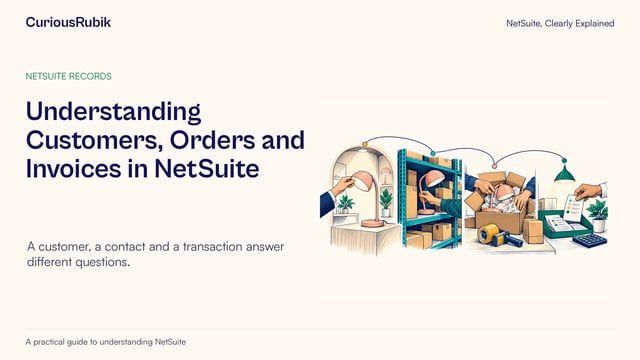
Editorial ink illustration: A visitor receives an access card beside several separately controlled doors.
A colleague says, “Open the customer record from this menu,” but your screen has different tabs. A training video shows a task you cannot find. Yesterday’s dashboard seems to have disappeared after you signed in again.
NetSuite navigation depends on context. The account identifies the business environment you entered. The role defines assigned access. The center organizes the pages and links associated with that role. Configuration and the experience you are using can also affect the layout.
Once you separate those ideas, you can find your bearings more quickly and give your administrator a much clearer question. You can also avoid a common mistake: requesting broad access when the problem is simply an unfamiliar layout or the wrong environment.
Account: which place did you enter?
An account is the NetSuite environment in which you are working. A production account supports live business activity. Other account types, such as sandbox and Release Preview, serve different purposes.
A user may have access to more than one account. Similar company names or familiar records can make the difference easy to miss. Confirm the current account using the identification available in your session before creating, editing or relying on records.
This is especially important during training. A task completed in an approved sandbox does not mean the corresponding production work is complete. Conversely, a practice exercise in production may have real effects.
If a customer or transaction seems to be missing, first establish whether you are in the expected account. A test copy may contain older data, different setup or different access. Do not create a replacement record simply because the expected one is absent from an unfamiliar environment.
The lesson on production, sandbox and Release Preview explains how to match a task to the right account type. Your first navigation question should be, “Am I in the place where this work belongs?”
Role: which access is assigned to you?
A role is an assigned access configuration. It affects the pages you can see and the tasks you can perform. Your administrator manages roles and account access.
You may have more than one assigned role. For example, a person might use a business role for their daily work and a separate employee role for their own administrative tasks. Switching between assigned roles can change what appears on the screen.
Role choice and account choice are separate. If you can access several accounts, your available roles belong to the selected account. Do not assume that a similarly named role in a test account behaves identically to the role you use in production.
Where several roles are assigned, NetSuite provides controls for switching roles and choosing defaults. The precise presentation can differ with the experience. Use the account and role selection controls available in your session, and confirm the selected context after switching.
Before switching, save or safely leave any unfinished work using your team’s normal practice. Do not rely on the new session to preserve an incomplete form.
A role name is a useful clue, but its name alone is not a complete description of access. Custom roles and account-specific configuration can differ. Ask about the exact task and record scope rather than assuming that two roles with familiar names have identical permissions.
Center: how is the work organized?
A center is the role-oriented arrangement of tabbed pages and links. It helps organize the tasks relevant to a type of user. Different centers can therefore lead people to the same general area through different navigation.
Think of the account as the workplace, the role as your assigned access and the center as the arrangement of the signposts. The signposts help you find things; they do not independently grant permission to do everything you can name.
Centers can be customized. Dashboards can also be personalized or published for users by administrators. A colleague’s dashboard arrangement is therefore not a reliable inventory of the access you should have.
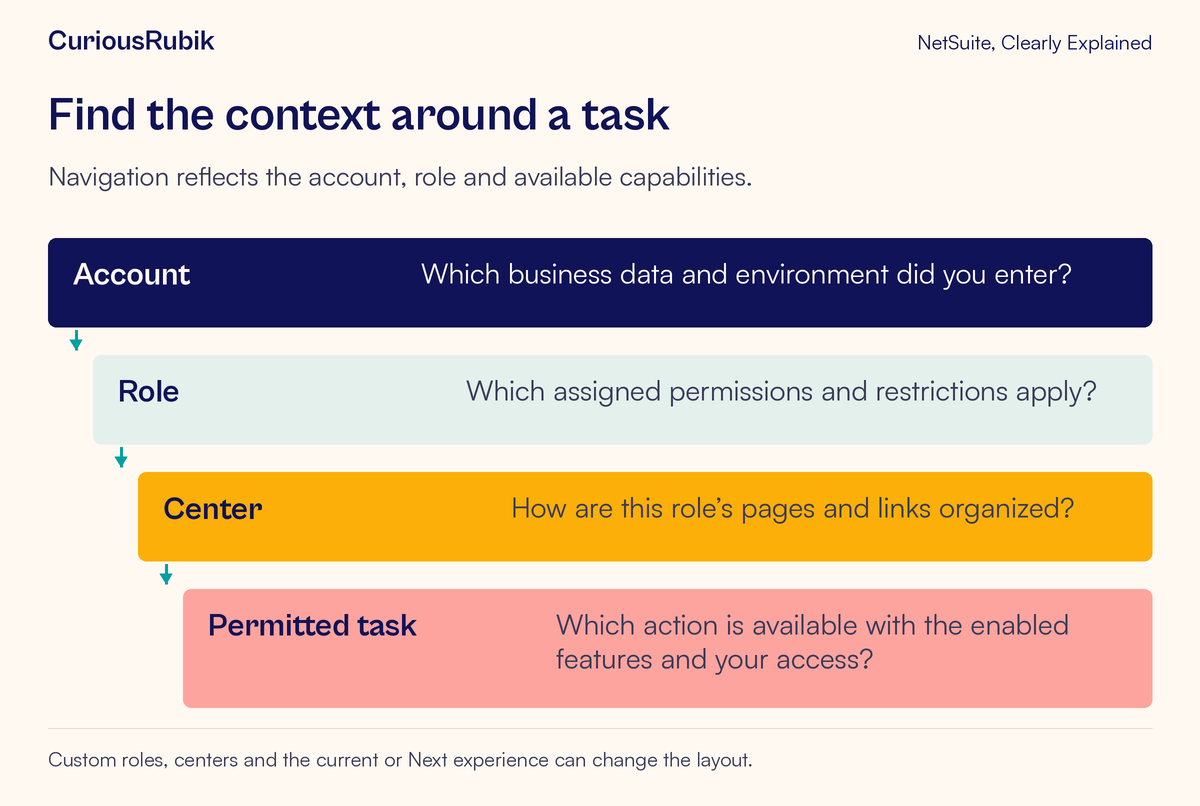
This distinction helps trainers write better instructions. Begin with the task and expected outcome, then give navigation that has been checked for the intended role. “Open the permitted customer record and review its contact information” gives learners a purpose even if a tab label differs from a screenshot.
When a guide is intended for one specific role or center, say so. A generic menu path presented as universal can turn a routine training difference into an unnecessary support ticket.
The experience can also change what you see
NetSuite Next is being introduced in phases. Account eligibility and role access affect whether it is available, and its presentation can differ from the current experience.
When comparing screens, record which experience each person uses. A changed visual layout does not, by itself, mean the underlying record is different. Switching between supported experiences within the same account uses that account’s saved data.
Keep this separate from entering a separate preview account, which is a different environment. If your team is exploring new navigation, NetSuite Next access and eligibility explains that distinction in more detail.
Do not assume that a video, screenshot or another employee’s experience applies to your account today. Ask your administrator or trainer for the version of the instructions that matches your assigned context.
Describe the task before looking for a menu
“Where is the invoice menu?” leaves several possibilities open. The person might want to view an invoice, create a new one, edit a field, inspect a balance or perform an accounting action. These do not necessarily require the same access.
Use a sentence with an action and an object: “I need to view the invoice and check its payment status while handling a customer question.” Then add the relevant business boundary, such as the customers or subsidiary you are responsible for.
Try the permitted navigation or search tools available to your role. Search may help you find an accessible record or task, but it does not grant missing permission. To understand the record you find, the records and transaction relationships lesson is a useful next step.
Be careful when interpreting an empty result. The record may be outside your access, outside the search criteria, in another account or absent altogether. An empty search does not establish which explanation is correct.
Avoid collecting direct links from coworkers as a way to bypass access controls. Even when a shared internal link is appropriate for finding a record, it still operates within your assigned access. Never borrow credentials to copy someone else’s view.
A worked example: a sales user needs invoice information
Consider a fictional sales coordinator helping a customer who asks whether an invoice has been paid. An accounting colleague can see a payment-related task that is absent from the coordinator’s menu.
The coordinator’s first instinct is to request the colleague’s accounting role. A better first step is to describe the actual need: view permitted invoice information to answer a customer question. The coordinator does not need to create payments merely because the colleague’s screen includes that task.
The coordinator records the current account and role, identifies the invoice through the approved internal process, and confirms that the issue occurs in the intended production account. They note whether the invoice itself is visible and which specific information cannot be reached.
The administrator then has a bounded question to investigate. Is the required information already available through an approved view? Is the user looking in an unfamiliar center? Does the role need a narrowly scoped access change, or should accounting provide the answer through the established process?
Any access change should follow the organization’s approval process and be tested with the intended role. The test should confirm both that the coordinator can complete the authorized task and that unrelated accounting actions remain appropriately restricted.
The outcome might be better navigation guidance rather than a permission change. Either way, the business need stays clear and the investigation avoids unnecessary access expansion.
Diagnose a missing item in a sensible order
First check the place: current account and assigned role. This can explain both unfamiliar menus and unexpected data.
Next check the layout: center, customization, dashboard arrangement and current or Next experience. A task may be organized differently while the user’s access remains appropriate.
Then check capability: whether the relevant feature or module is available and configured in the account. A missing feature is a different problem from a missing permission.
Finally, ask the administrator to review the specific action and record scope. Being able to view a record does not automatically mean the user should be able to edit or approve it.
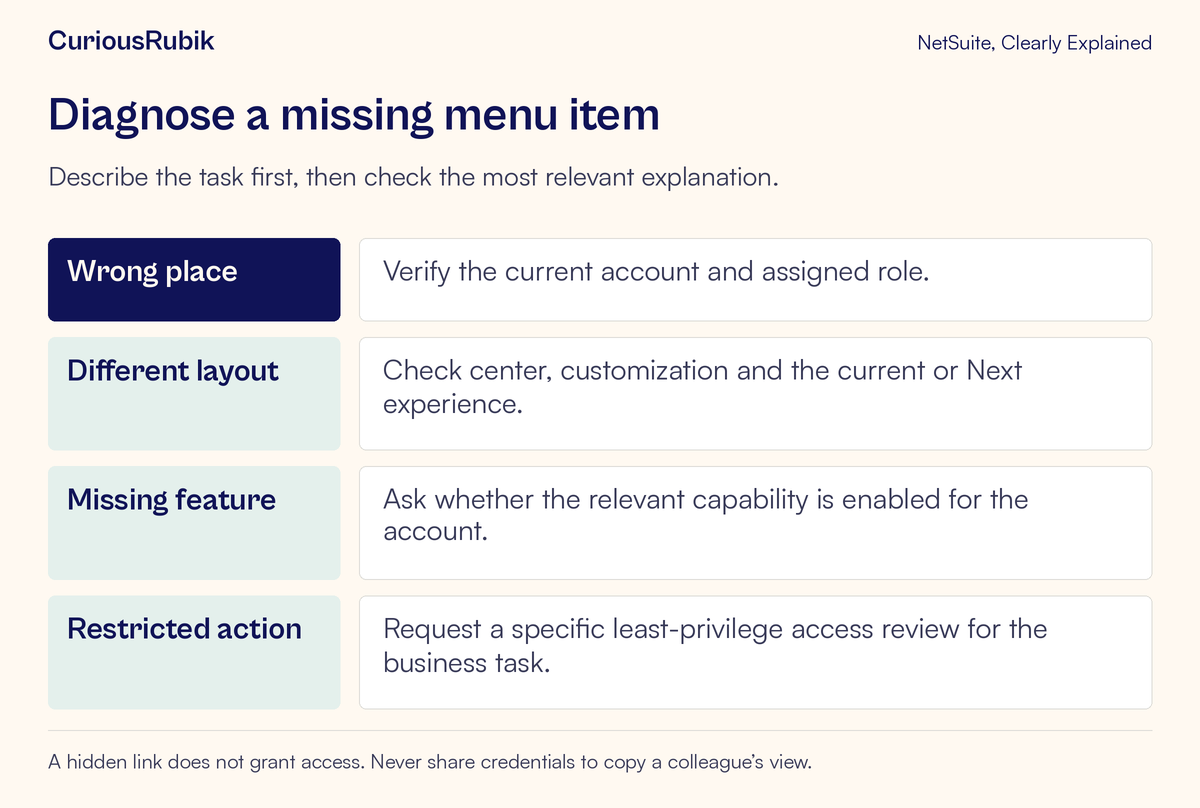
This order is an investigation aid, not a guarantee that every problem belongs to one category. An account can have both an unfamiliar center and a genuine access gap. Record what each check establishes rather than closing the issue after the first plausible explanation.
Send an administrator a useful access question
A good request contains enough context to reproduce the issue without exposing unnecessary business information. Include:
- The account and environment where the task belongs
- Your current role and the experience you are using
- The exact action you need to perform
- The relevant record type and a safely shared example identifier
- The business reason and appropriate scope
- What you can currently see and the exact error, if any
- When it happened, if the behavior changed recently
For the fictional coordinator, the request could read: “In our production account, using Sales Coordination, I need to view payment status for invoices belonging to my assigned customer group. I can open the invoice but cannot find the relevant information. Could you confirm the approved view or review the minimum access needed?”
That request invites a solution without prescribing an unnecessarily broad role. If your organization is reviewing access more widely, see NetSuite roles and permissions with a practical access review.
For planned training in a copied environment, sandbox refresh planning explains a related reason the records or setup may differ from earlier exercises.
Before you conclude that access is broken
Confirm the account, role and intended task. Identify the relevant record and the business reason for needing it. Compare layout and feature availability before proposing a permission change. Capture errors safely, and ask for the minimum appropriate access review.
These habits help new users become more independent while giving administrators clearer support cases. If your team needs help maintaining roles and controlled day-to-day configuration, explore CuriousRubik NetSuite administration.