Last reviewed: 10 October 2026. Product details reflect this review date. Availability and behavior can vary by account, role and release.
Editorial ink illustration: Two tabletop machines are compared with matching document bundles and a separate test case.
Two colleagues can sign in to NetSuite and see different experiences for legitimate reasons. Before treating the difference as a fault, identify the account, the role each person selected, and the access setting that applies to that role. These are separate questions, and they lead to different next steps.
For an administrator or team trainer, this distinction matters immediately. A training exercise can fail because it assumes everybody has the same options. A user can also mistake a new-looking production experience for a safe testing environment. Understanding access prevents both problems.
This lesson explains the difference between account eligibility, role-level access, and the environment in which work is saved. NetSuite Next is being introduced in phases. Availability and supported options can change, so confirm your account's current eligibility and behavior before using this guide for a rollout.
Ask which account before asking which screen
An account is the place where business records live. The experience is the way a person interacts with those records. A role helps determine what that person can see and do.
Those layers are easy to confuse when a redesigned screen is the most noticeable change. Start a support conversation with the account identifier and environment type, then the selected role, then the experience being used. Avoid relying on a screenshot's appearance alone.
For example, “I am in the production account using our accounts-payable role, and I cannot switch experiences” is actionable. “I do not have the new screen” leaves several possible explanations open.
A trainer should make the same information explicit at the beginning of an exercise. Learners need to know where the work will be saved before they create or change a record. For a wider review of job access, see CuriousRubik's NetSuite roles and permissions guide.
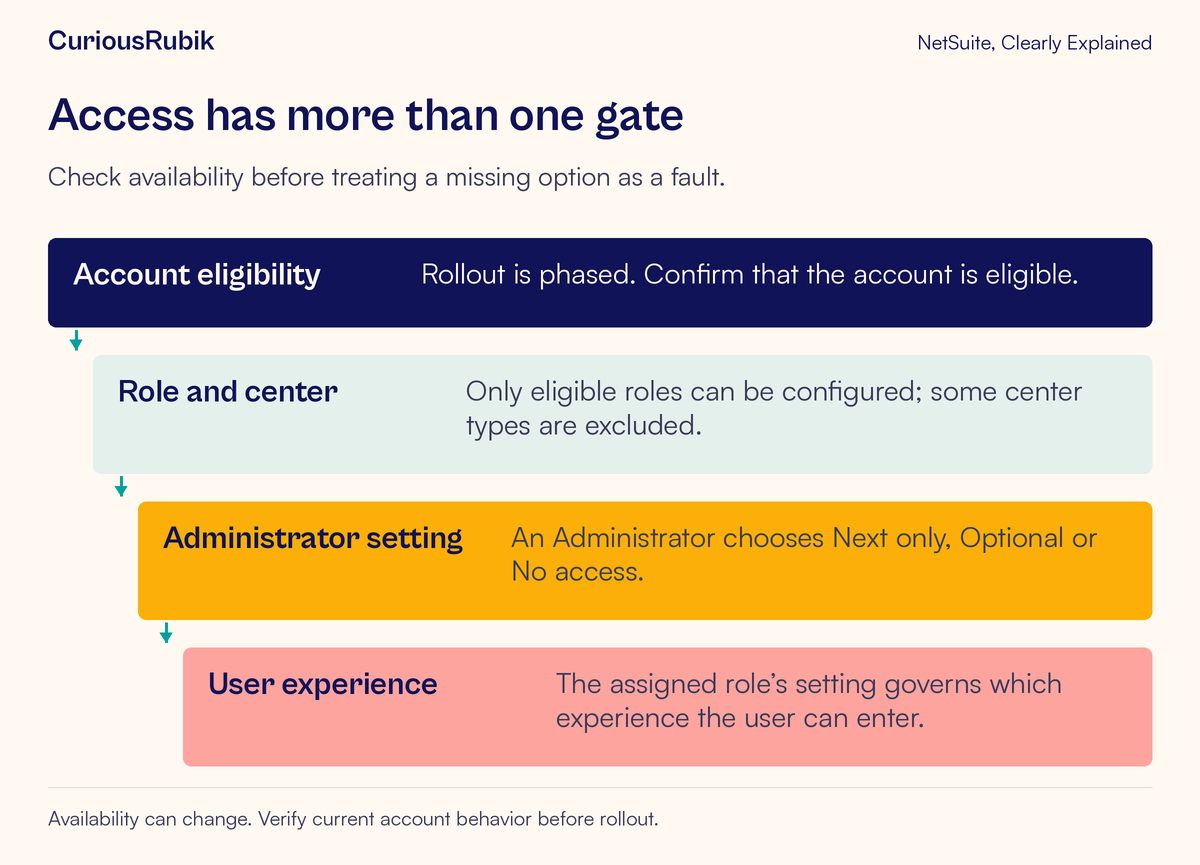
Account eligibility is the first gate
NetSuite Next availability is phased. Your administrator should check the account's eligibility and the options currently offered to it. A colleague at another company having access does not establish that your account has the same availability.
Eligibility also does not mean every person will receive the same experience immediately. It creates the context in which the administrator can manage eligible roles. The next question is which role the user is using and whether that role's center type is supported.
If the expected options are absent, record what the administrator actually sees rather than building a rollout date around an assumption. Avoid making promises about a universal launch date, commercial terms, or access across every account. These details need account-specific confirmation.
For training planning, separate “we want to explore this experience” from “our production team can now use this experience.” The first can be a preparation goal. The second needs verified availability and an agreed access decision.
A role setting answers a different question
Where role management is available, a user with the Administrator role manages NetSuite Next access for eligible roles. The role-management page is not available to every user who can perform some administrative tasks.
Eligible roles can use three access settings:
- NetSuite Next only: users of that role use Next, with the change taking effect at their next login
- Optional: users of that role can switch between the current and Next experiences
- No access: users of that role continue with the current experience
A center is the job-oriented arrangement associated with a role. Some center types are excluded from Next eligibility. At the time of this lesson's review, those include Employee Center, Customer Center, Partner Center, Advanced Partner Center, and Vendor Center. Confirm the current list before changing a training plan.
Choosing an access mode should fit the tasks the role needs to complete and the team's readiness. An optional experience can support a controlled comparison. A Next-only decision needs enough preparation that the affected users know how to complete their essential work when they next sign in.
Treat this as a role-level decision. Record the role name and who uses it. Do not describe one employee's preference as if it automatically establishes the right setting for everyone assigned to that role.
Distinguish a preview copy from an experience switch
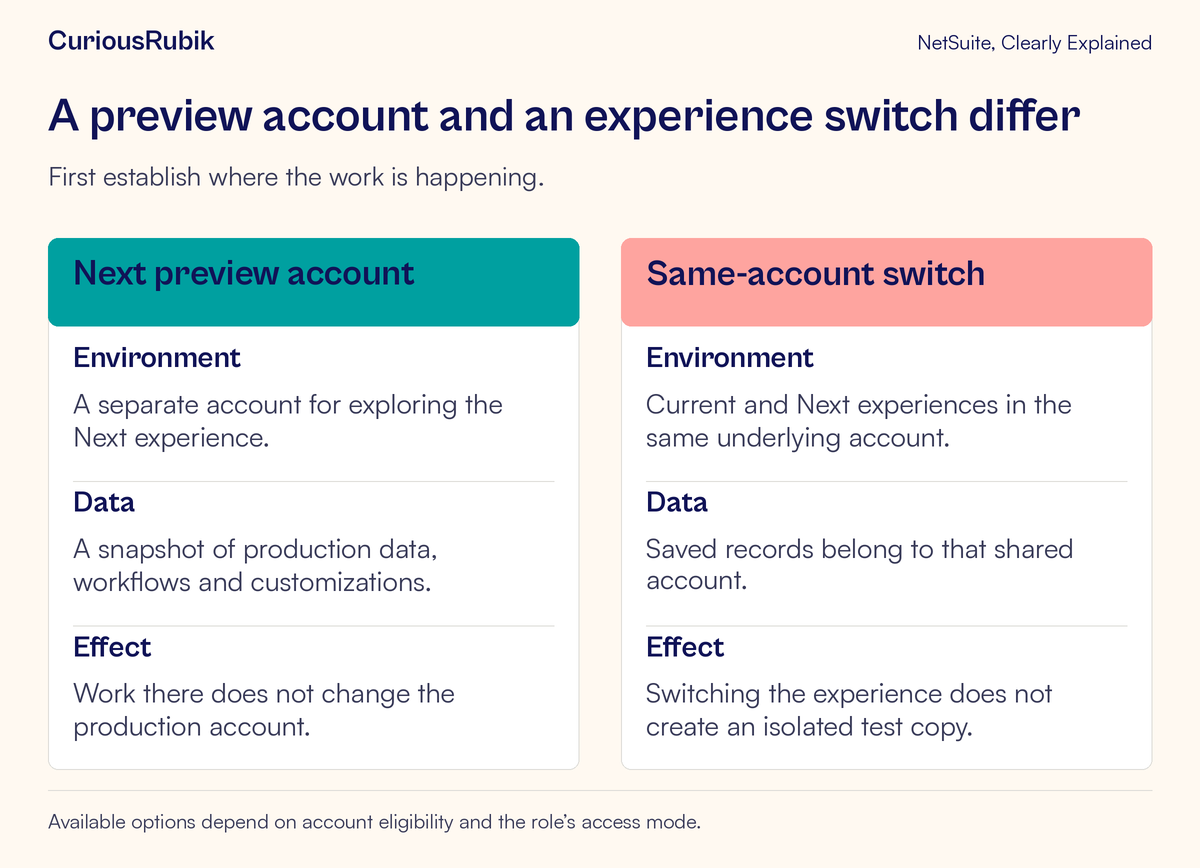
A NetSuite Next preview account is a separate environment containing a snapshot of production data, workflows, and customizations. Work in that separate preview does not change the production account. It provides a place to explore the experience under the preview's applicable conditions.
Switching between the current and Next experiences within an enabled account is different. Both experiences use that same underlying account. Saved records remain part of it. If the account is production, changing the experience does not turn the session into a training copy.
This distinction has a practical consequence: do not create a pretend supplier, test invoice, or training transaction in production merely because the screen looks unfamiliar. First establish that the exercise is in an approved testing environment.
A useful training introduction might say: “Today we are using the separately identified preview account. These are the permitted test records. We will stop if the account identity is different.” In production training, the introduction should instead identify the approved live task and its boundaries.
The word preview alone can be ambiguous in conversation. NetSuite Next preview exploration and Release Preview upgrade testing have different purposes. Specify which environment you mean. Our lesson on production, sandbox, and Release Preview accounts explains the broader account-type distinction.
Diagnose a fictional two-person training problem
Suppose a fictional company, Fieldstone Services, invites Priya from accounting and Mateo from operations to a Next familiarization session. Priya sees the expected experience. Mateo reports that his menu has no corresponding option.
The trainer initially suspects that Mateo needs additional permissions. Instead of changing his access immediately, the administrator collects four facts from each person: account identity, selected role, role center type, and the experience currently available.
In this invented example, both people are in the same eligible account. Priya is using an eligible accounting role configured as Optional. Mateo is using an Employee Center role for his ordinary employee tasks. That center type is outside the supported Next role set at the time of the exercise.
The difference now has an explanation. It does not show that Mateo's employee tasks are broken, and it does not justify assigning him an accounting role. The trainer adjusts the session so that each person practices the work appropriate to their authorized role.
If Mateo also has another legitimately assigned role, the administrator can evaluate that role's eligibility separately. The business reason comes first. Switching to a more powerful role merely to reproduce another person's screen could expose unrelated records or actions.
A second check reveals that Priya was about to enter a fictional invoice in the eligible production account. Her Optional setting lets her change the experience, but it does not create a separate data copy. The trainer moves the exercise to a permitted preview environment before any test record is saved.
The two checks resolve different risks: the role check explains the screen difference, and the account check protects live records. Neither result required a universal menu path or an assumption that the users should look identical.
Verify one real task in the allowed experience
After confirming access, test a task that matters to the role. Choose a narrow activity such as finding an existing permitted record, reading the relevant information, and completing an authorized action in a test environment.
Write the expected business result first. Include the important custom form, field, workflow, or portlet if the task depends on it. Record which experience and role were used so that another tester can reproduce the observation.
For a role configured as Optional, a comparison can help separate unfamiliar presentation from a functional difference. Use the same saved test record where appropriate and avoid accidentally repeating an action that creates another transaction. Define whether you are comparing reading, editing, or completing a process.
Customizations need attention where they depend directly on page structure. Scripts or form behavior that manipulate HTML can require review. Do not assume every existing customization will behave identically simply because the underlying records are shared.
If a customized page fails, capture the task, record identifier, role, experience, and exact observed behavior. Have the customization owner investigate. A report saying “the custom field is present but its validation does not run during this action” is more useful than “Next is incompatible.”
Keep access readiness separate from feature evaluation
Being able to enter an experience answers an access question. It does not establish that every capability is suitable for every business decision. If the rollout includes AI-assisted tasks, evaluate those tasks with their own accuracy, approval, and evidence checks.
CuriousRubik's article on evaluating NetSuite AI features with accuracy and approval tests is a related next step. Keep the result of that evaluation separate from the role-access record so that an access change cannot be mistaken for a blanket approval of outputs.
Likewise, a successful demonstration by an administrator is insufficient evidence that a business user can finish the same task. Repeat the relevant check with the intended role and its actual record boundaries.
Use a short access and training checklist
- Confirm the account identity and whether it is production or a separate preview
- Verify current Next eligibility for that account
- Identify the exact role and its center type
- Have the Administrator verify the role's applicable access mode
- Confirm which users and business tasks the decision affects
- Use an approved environment and records for exercises
- Test an essential task, including its important customizations
- Record any difference with the role, experience, and expected result
- Keep access readiness and individual feature approval as separate decisions
A well-prepared rollout begins with a shared understanding of where people are working and what their role permits. Once those facts are clear, training can focus on completing useful tasks rather than explaining mysterious differences between screens.
For the navigation fundamentals, continue with accounts, roles, and centers explained. For help preparing role-specific exercises, explore CuriousRubik's NetSuite training and adoption services.