
Last reviewed: 10 October 2026. Product details reflect this review date. Availability and behavior can vary by account, role and release.
Editorial ink illustration: A traveler organizes a receipt while waiting at a station.
You photograph a receipt before leaving a taxi and can see the expense on your phone. A week later, the approver cannot find it. The missing piece may be simple: the expense was logged locally but never submitted as part of an expense report.
NetSuite for Mobile stores logged expenses on the device until they are submitted within an expense report. Submitting requires signing in with a role that has permission to create expense reports. The distinction matters because a local receipt, a prepared report, a submitted report, an approval, and a reimbursement answer different questions.
This guide helps employees follow that journey and gives approvers a precise way to investigate a missing expense. App capabilities vary with the current version, access level, role, and account setup. The discussion concerns the general NetSuite mobile app; specialized warehouse or field-service apps have their own processes.
Know which stage you have actually reached
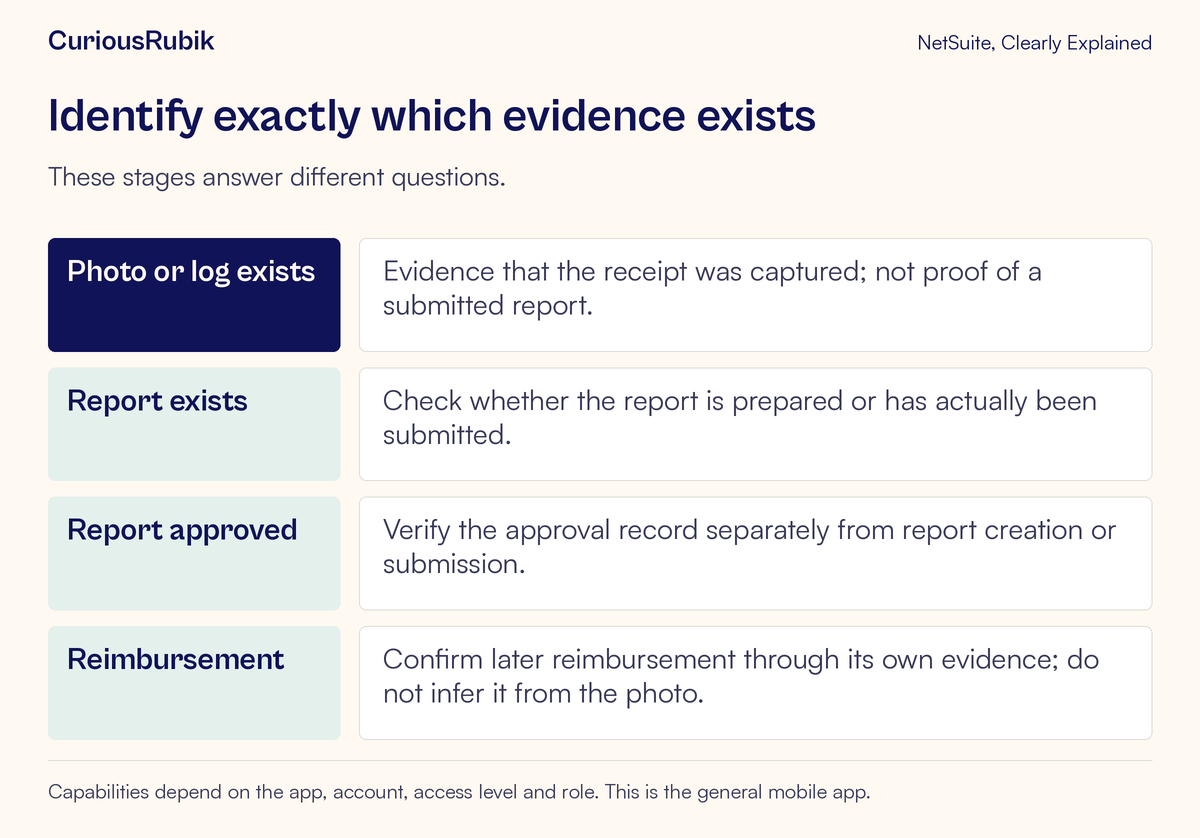
Start with the evidence you can observe. A photograph shows that an image exists. A local expense entry shows that information has been captured on the device. A report groups expense entries for the business process. Submission moves the work into the account's reporting and review process under the configured rules.
Approval is a later decision. Reimbursement is a later financial outcome. An employee should be able to say which of those stages is verified rather than using “done” for all of them.
This is especially helpful when asking for support. “The taxi receipt is visible in my local expense list, but I cannot identify a submitted report containing it” tells the administrator where to start. “NetSuite lost my expense” leaves open several different possibilities.
For an employee, the practical finish line for this lesson is a report that can be identified in the correct account, contains the intended expense, and shows the expected submitted state or next review step for the organization's configuration.
Check access before relying on the phone
Expense logging requires the File Cabinet feature to be enabled. Your administrator should confirm that prerequisite and the appropriate mobile setup. Employees should not enable account-wide features or request broad permissions merely to make a training example work.
The role used for submission matters. A person may be able to log an expense but still need a role with expense-report creation permission to submit it. Record the account and role when reporting a problem, especially if you can switch among several roles.
Before a trip, try the approved process with safe training data or ask for a supervised walkthrough. Establish how your organization expects reports to be grouped, which categories and required fields apply, and what to do if submission is interrupted. Those are business rules that the receipt photograph cannot supply.
Also understand the local-data risk. Because logged expenses can remain on the device, avoid assuming that an unsent entry is already available elsewhere. Before changing devices, reinstalling the app, or clearing app data, use your organization's support process to establish where any unsubmitted expenses are stored and how they should be protected.
Capture evidence that another person can understand
Use a clear receipt image and review the relevant details rather than relying on the photograph alone. Check date, amount, currency, supplier description, expense category, and the business purpose required by your policy.
Keep the description specific enough for the reviewer to understand the expense. “Taxi from station to project meeting” is more informative than “Travel,” if that is the truthful approved business purpose. Do not add unnecessary personal details or payment information to the narrative.
If the receipt includes sensitive information, follow the organization's approved evidence and redaction policy. Do not alter the commercial details needed to support the claim. For practice, use a fictional receipt that contains no real card number, traveler identity, or customer information.
The lesson on employee records and user access explains why an employee record and permission to perform a task are separate considerations. This lesson concentrates on proving the move from a locally captured entry to a submitted report.
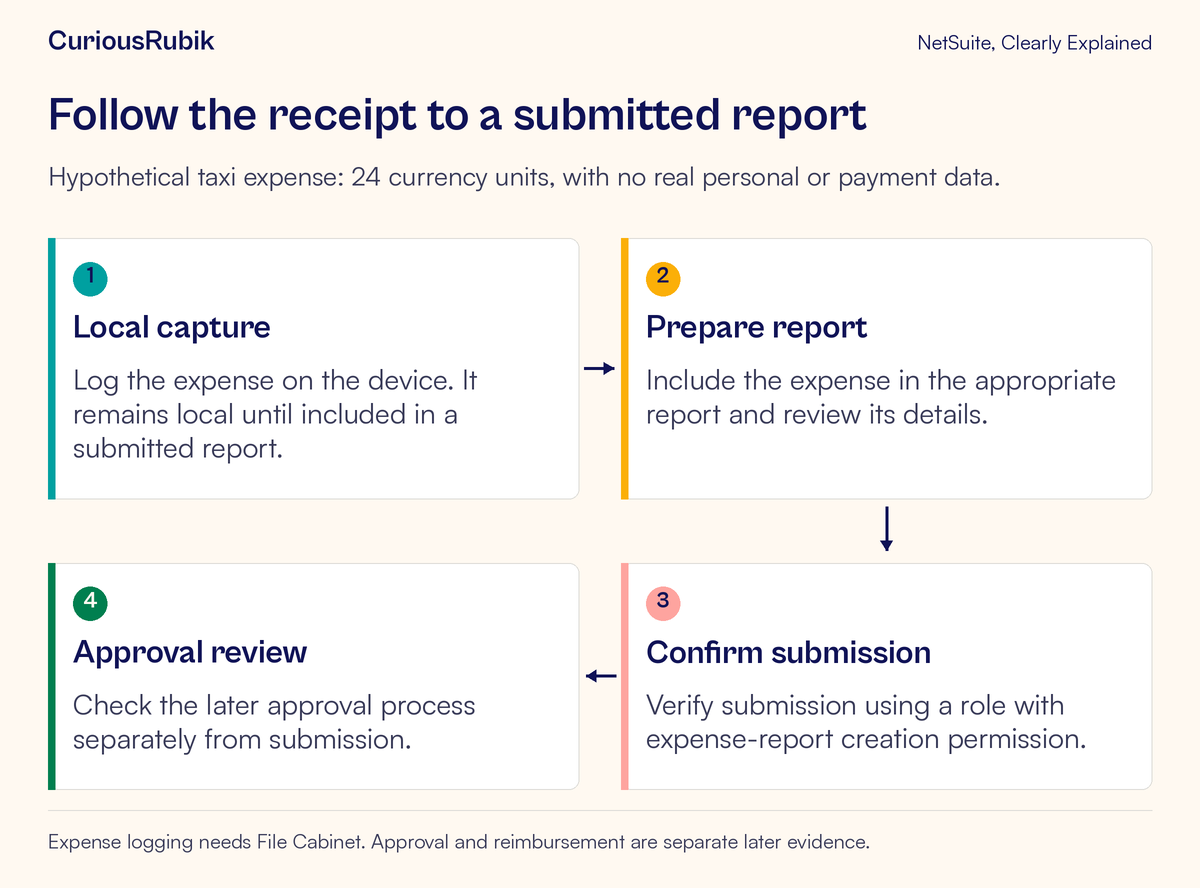
Follow a fictional 24-unit taxi expense
Imagine Noor, an employee of the invented company Alder Design. Noor takes a taxi to a work meeting and receives a receipt for 24 currency units. The exercise uses an invented receipt and a permitted test account; it does not represent a real claim or payment.
Noor logs the expense on the phone and attaches the receipt through the available approved flow. At this point, the test expectation is limited: the local expense should display the correct details and readable evidence. The approver has not yet been given a completed claim simply because Noor can see the entry.
Noor then prepares the appropriate expense report using the authorized role. Alder's training procedure says that this report should contain only the single taxi expense. That narrow scope makes the expected amount easy to check.
Before submission, Noor verifies:
- The expense date matches the fictional receipt
- The amount is 24 in the intended currency
- The category and business purpose follow the agreed exercise
- The receipt is readable and belongs to this taxi journey
- The report contains the expense once
- Any account-specific required information is complete
The team has deliberately kept tax, exchange-rate, and other adjustments out of this simple example. In a real report, those settings may affect amounts and must follow your organization's procedure. Do not force the report total to 24 if legitimate configured treatment produces a different presentation; ask the finance owner to explain the difference.
Submit, then verify from the report
Noor completes the organization's submission steps and waits for the app's result. A tap on the submission control is an action, not conclusive evidence of the final state. If the response is unclear, Noor checks the report before attempting another submission.
Record the report identifier or other reliable reference made available by the account. Reopen the report through an authorized route and confirm the expense is included once, the amount and receipt are correct, and the report shows the intended status or review handoff.
The approver then checks the report through the usual permitted process. A successful handoff means the right person can find the right report and inspect the evidence needed for review. If Noor can see a report but the designated approver cannot, the team should investigate visibility, routing, or report state rather than assuming approval is underway.
In this hypothetical test, the acceptance statement is: “The submitted report contains the taxi expense once and is available for the configured next review step.” It makes no statement about when the employee will receive money.
Keep submission, approval, and payment separate
After submission, the employee should follow the organization's normal status-checking procedure. Approval may require corrections or additional evidence. A return for correction means there is more work to do; it does not justify creating a second claim for the same receipt.
If the report is approved, ask what evidence establishes the reimbursement stage in your organization. A payment may be handled through a separate process, schedule, or transaction. The status of one step should not be used as a shortcut for the others.
For approvers, distinguish an incomplete report from an expense that is outside policy. One is a data or process issue; the other requires the appropriate business decision. Record the reason clearly so the employee knows whether to correct information, supply evidence, or discuss eligibility.
If the phone shows different options from a colleague's account, review accounts, roles, and centers before treating the difference as a missing expense. If your work also uses a specialized service app, keep its field-service task process separate from this general mobile expense-reporting exercise.
Handle interrupted submission without creating duplicates
Suppose Noor loses connectivity near the submission step. The safe question is whether the report reached the account and what state it now has. An error message or missing confirmation may leave the outcome uncertain.
Do not immediately prepare a second report with the same expense. Check the available report list, record identifiers, and authorized account view, or ask the expense administrator to investigate. Preserve the time, account, role, and sanitized message that appeared.
If no report exists and the support team confirms that resubmission is appropriate, follow the approved recovery steps. If a report does exist, continue from that record. The objective is to recover the business task without creating two claims for one receipt.
A screenshot can help explain what the phone displayed, but limit it to necessary information. Keep other travelers' expenses, personal details, and payment data out of a broad support conversation.
Troubleshoot the common situations
If the expense is visible only on the phone, first ask whether it has been included in a submitted report. Local capture is an expected stage of the workflow. Identify the report before investigating approval routing.
If logging is unavailable, ask the administrator to confirm File Cabinet enablement, current mobile setup, and your access level. If report submission is unavailable, check that the selected role has the necessary expense-report creation permission and that required report information is complete.
If the receipt is missing from a report, compare the local entry with the actual report line. Confirm that the intended expense was included and that the image is associated with it. Avoid claiming that an attachment transferred successfully until someone can open the relevant evidence through the authorized report view.
If the total is unexpected, look for duplicate entries, currency differences, and the account's tax or adjustment treatment. Compare each line with its evidence rather than changing the total directly to make it look familiar.
If an approved expense remains unpaid, route the question to the person responsible for reimbursement and provide the report reference. Repeating submission does not advance a separate payment process.
Your before-you-finish checklist
- The receipt is readable and contains only appropriate evidence
- Date, amount, currency, category, and purpose were reviewed
- The expense appears once in the intended report
- The correct account and authorized role were used
- Submission has been verified from the report's actual state
- The next reviewer can find the report through the approved process
- Any interrupted attempt was checked before retrying
- Approval and reimbursement remain separate status questions
For teams building a consistent employee and approver routine, CuriousRubik's NetSuite training can turn this sequence into a short practice exercise. The habit to keep is simple: leave the task with a report reference and a verified state, rather than a memory of tapping a button.